

I tried the Gemini app for Windows. It wasted my time
A few months ago, Google released the Gemini app for macOS as a one-stop shop for accessing Google content. It came and went. Now it’s available for Windows too. Is it any better? Nope.
My colleague on the AI beat, Ben Patterson, characterized the Mac version of the Gemini app with a middling “meh,” and that’s where I am as well. As I sat down to write, the blog post announcing the Windows app didn’t even include a link to download the free Gemini app for Windows itself.
The Gemini app for Windows is a front page of sorts to Gemini’s generative content: the LLM chatbot itself, which is all that appears if you refuse to sign in to Google’s services with a Google account. Once you do, that unlocks the ability to access stored chats, plus dedicated tabs for images, video, and a stored library of the same. Optionally connecting Gemini to your Workspace account (Gmail, Drive, and more) allows access to a “daily brief” of your most important emails.
That should be a productivity boost, right? Well…
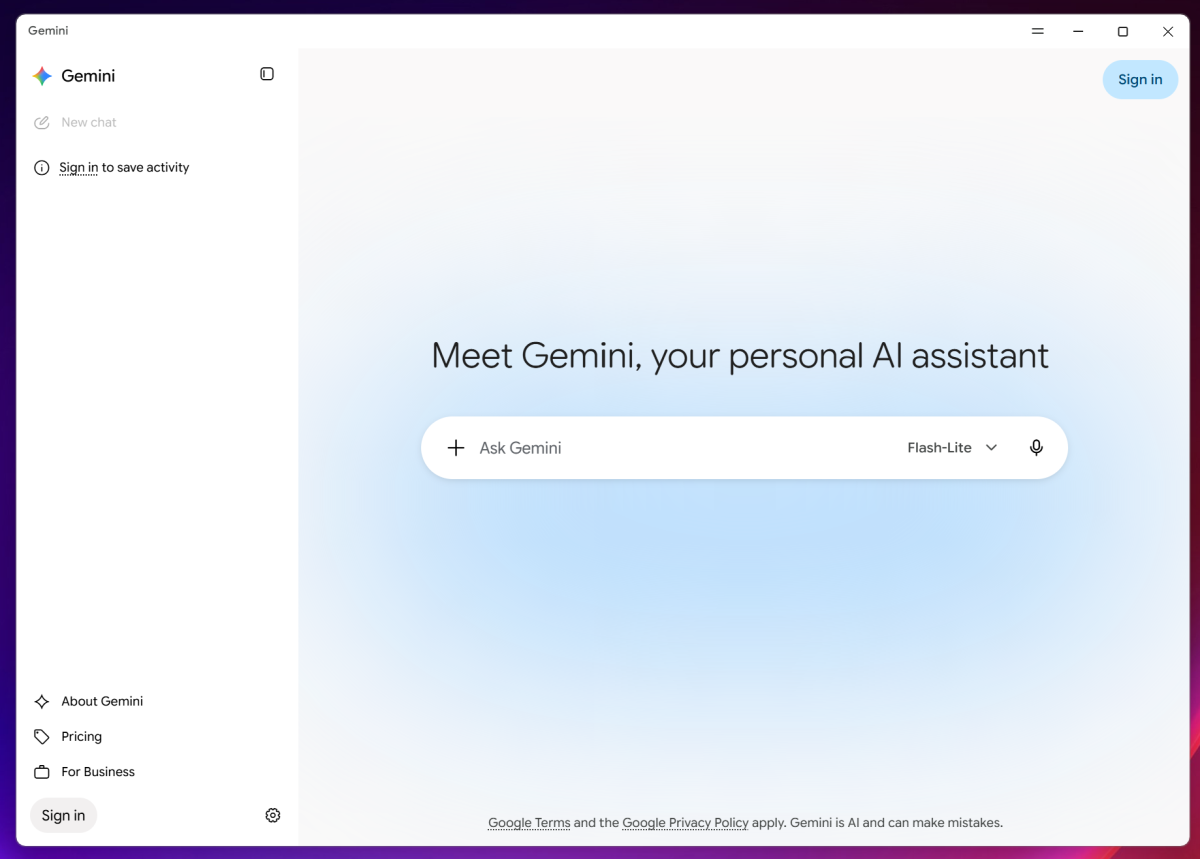
Foundry
Competing options, like ChatGPT’s Windows app, allow you to connect the agent to your desktop or services like Slack. There, those agents can take actions for you. Gemini can’t even do that.
Supposedly, one of the new Gemini app features access to Spark, Google’s personalized AI agent, at least in Google’s blog post. I didn’t see it in the app, either as a feature or even a potential upsell. (I’m currently not paying $100 per month to Google to access Spark via a Pro plan, which may have affected what the app showed me.)
Instead, the app directed me to the “Scheduled Actions” via the Settings menu at the bottom of the page, where I could sample Google’s suggestions, such as sending me a recipe every weekend or suggesting a motivational quote every morning.
If you download the Gemini app for Windows, make sure you explore the Settings menu further. There, the “Personal Intelligence” tab will allow you to turn on (or off) Gemini’s memory about you. A separate “Import memory to Gemini” tab allows you to tell other LLMs to summarize what they know about you and then feed that information to Gemini. (My colleague Ben reports that Anthropic’s Claude does this as well.) There are a few other controls to tweak, too.
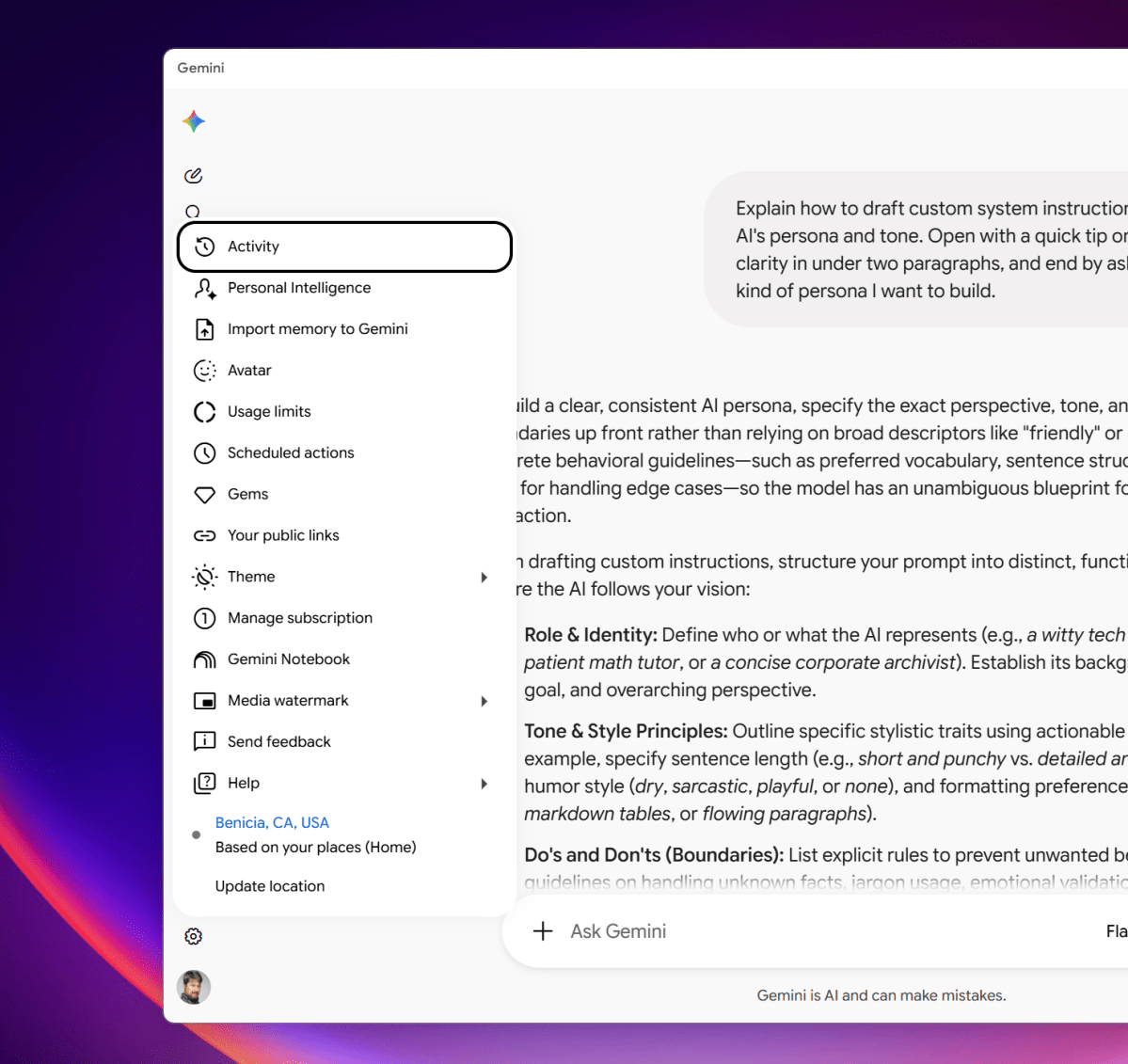
Still, the chatbot interface is where you should interact with Gemini. What does the Windows app offer that a prompt on Gemini’s web app does not? The one function that immediately came to mind was to use the app to clean out my Gmail inbox, such as deleting any email in my Social tab that was older than 60 days.
“I found emails from your Gmail search, but I am unable to permanently delete them for you,” Gemini responded. “I do not have access to an API function that performs email deletions or modifies category tabs. To clear or manage your ‘Social’ tab, you will need to open Gmail, navigate to the Social tab (or search category:social older_than:60d), select the messages, and delete them manually.”
OK, what’s the largest file in my Google Drive?
“I don’t have direct visibility into file metadata like exact storage size (in MBs or GBs) or a way to sort all files in your Google Drive by size,” Gemini responded.
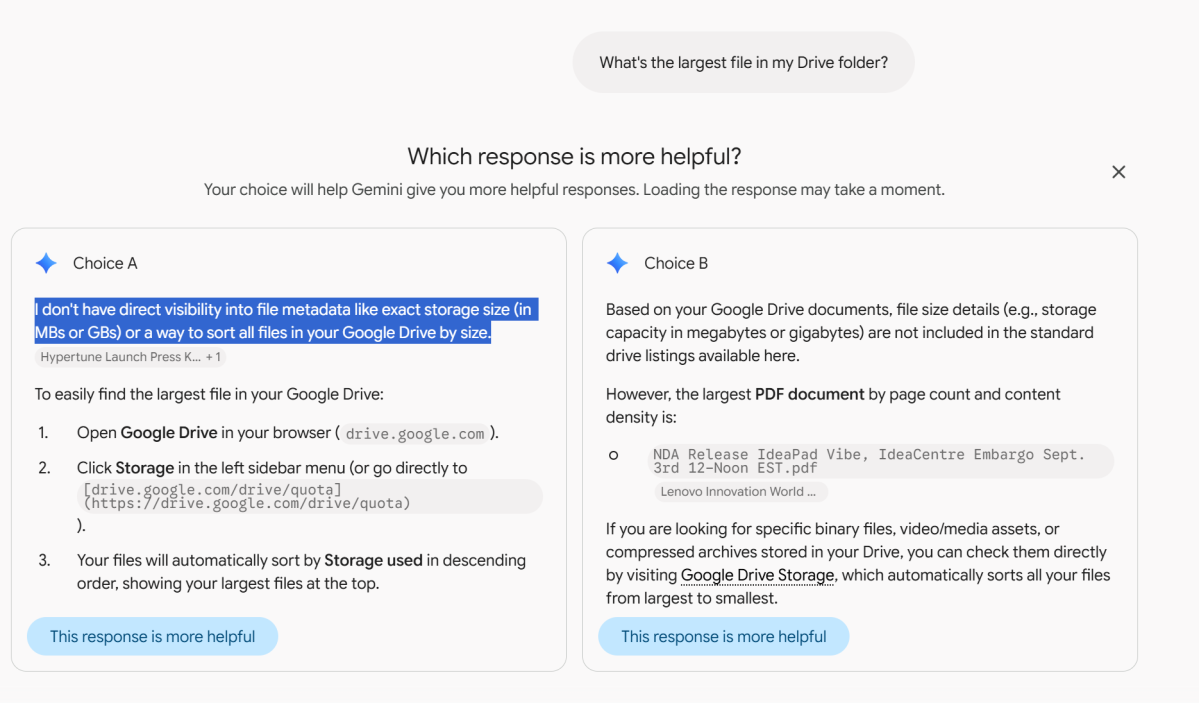
That’s a bunch of crap, to be honest. If Google Gemini can’t even control Google’s Workspace apps, then what good is it?
I noodled around a bit more, trying to create a video of a bunny and a squirrel playing tennis. My request apparently vanished after I navigated away from the tab. My library of saved media appeared, then presented itself as “unavailable” when I tried again.
And with that, I was done. Obviously, no service or app is ever really complete. But for now, the Gemini app for Windows is probably a waste of your time. I know it was a waste of mine.