MyPDFTools review: A handy free PDF toolkit with some rough edges
At a glance
Expert’s Rating
Pros
- 36 free browser-based PDF tools
- Clean, intuitive interface
- Strong performance on routine PDF tasks
- No account or software installation required
Cons
- Editing tools are limited
- PDF-to-Word conversion can lose formatting and layout
- OCR supports only English and files up to 30 pages
- Limited transparency about who operates the service
Our Verdict
MyPDFTools is a convenient free option for quick, low-stakes PDF tasks, with a broad set of tools that generally handle the basics well. But its limited editing, uneven conversion results, and lack of operator transparency make it less suitable for demanding or sensitive work.
Price When Reviewed
This value will show the geolocated pricing text for product undefined
Best Pricing Today
Best Prices Today: MyPDFTools
Price comparison from over 24,000 stores worldwide
Billed as “Every PDF tool you need,” MyPDFTools gathers 36 PDF utilities in a single browser-based interface. The appeal is you can run only the utility you need when you need it without having to invest in a full-featured PDF editor like Acrobat or Nitro PDF.
That formula works well for many everyday PDF tasks. But some of the more demanding tasks are where MyPDFTools starts to show its limitations.
Read on to learn more, then see our roundup of the best PDF editors for comparison.
MyPDFTools features and pricing
MyPDFTools has a clean, intuitive layout. The utilities appear as tiles in the main window and in a left sidebar grouped into six categories: Convert Documents, Organize, Edit & Sign, Optimize, Convert Images, and Security. The sidebar remains after you open a tool, making it easy to move between jobs, while search boxes offer another route to find what you need.
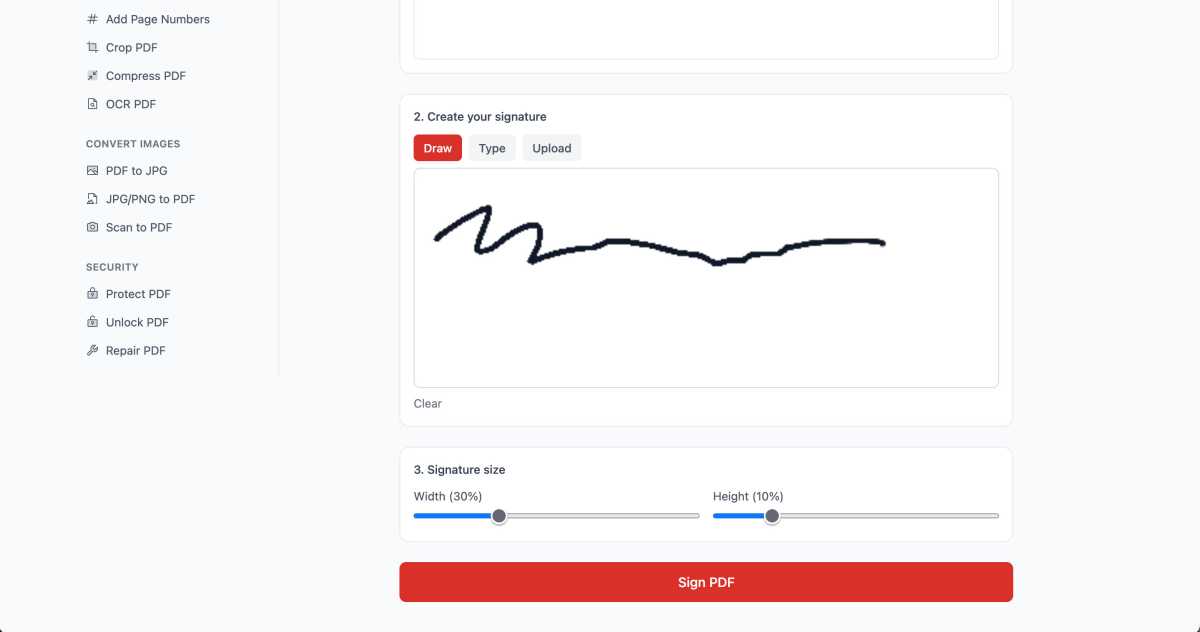
MyPDFTools lets you draw, type, or upload a signature and adjust its size before applying it to a PDF.
Michael Ansaldo/Foundry
Nearly every tool works the same way: Upload your document, choose your settings, and download the processed file. An optional account adds an activity history, and the interface is available in 33 languages.
All 36 tools are currently free, though OCR is marked “Free for now,” so that could change.
Editing and signing PDFs
The Edit & Sign category contains tools for editing and signing documents, redacting text, and “flattening” PDFs—locking in filled form values and removing their interactivity. All four worked in my tests, though the Edit tool offers far less than its name suggests. You’re able to place new text and images over a page but cannot change existing text or add annotations such as highlights, drawings, shapes, or comments. Added text can be resized, but there are no font or color choices.
The other three tools worked as advertised. Redaction lets you drag boxes over material you want removed. The site says it converts each affected page to an image while leaving untouched pages alone; in my download, the covered text could no longer be selected or extracted. Because the entire affected page is rasterized, its remaining text also loses searchability and screen-reader accessibility.
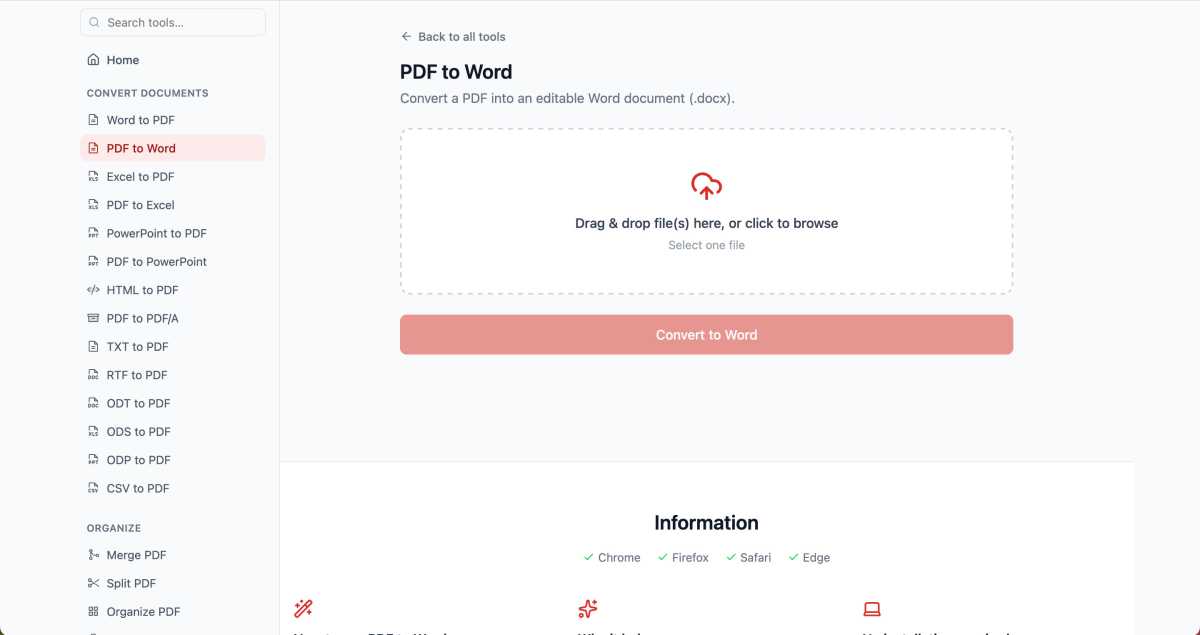
MyPDFTools includes 14 conversion options, including conversions to and from Microsoft Office formats
Michael Ansaldo/Foundry
To sign a document, you choose the page and location, then draw or type a signature or upload one. Width and height controls are provided to adjust its size. The result is a visible signature stamp, not a certificate-backed digital signature.
Organizing and protecting PDFs
MyPDFTools handled routine page management well across several test documents. Merge and split preserved the page order, while rotate, delete, reorder, and crop all worked as expected. I also tested a three-page interactive form with text fields, drop-down menus, checkboxes, and radio buttons; its controls remained intact after splitting, merging, and reordering. Watermarks and page numbers also appeared where they should.
To use the password protection utility, you simply upload a PDF, enter a desired password, and download the encrypted copy. My test file used AES-256 encryption and wouldn’t open without the password. Unlock PDF removed the protection with the correct password and returned a clear error when I entered the wrong one.
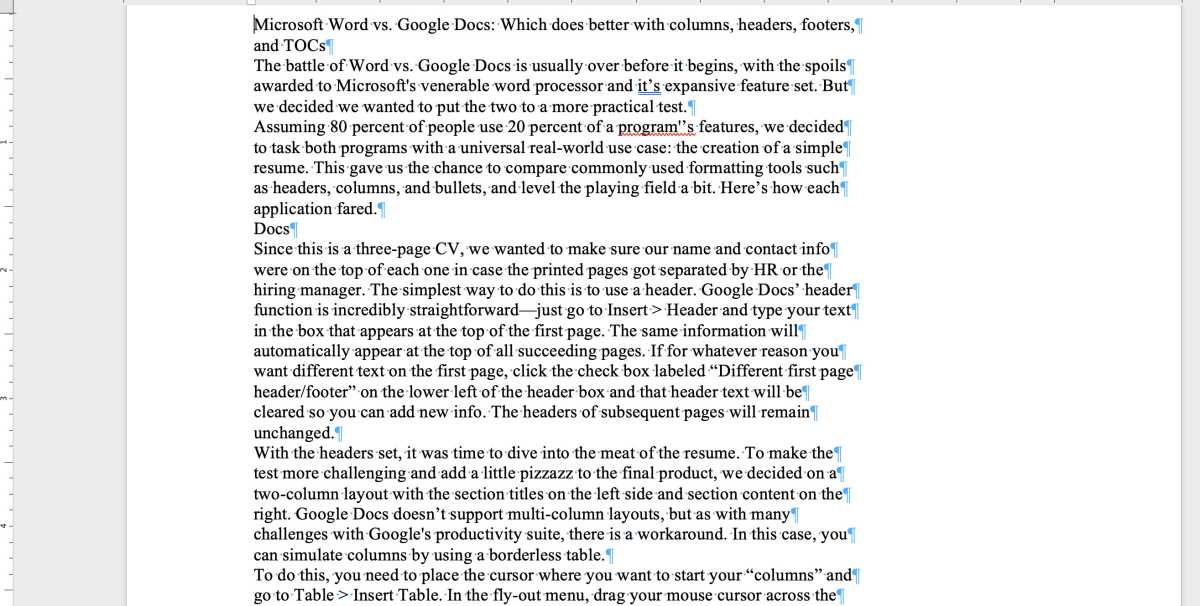
MyPDFTools’ PDF-to-Word conversion turned each printed line into a separate paragraph, making normal editing and text reflow cumbersome.
Michael Ansaldo/Foundry
Conversion and OCR performance
MyPDFTools offers 14 conversion options, including conversions to and from Microsoft Office formats, plus text, RTF, and HTML to PDF. Word-to-PDF worked well in my testing. A three-page document came back as a clean, readable PDF with its pagination, spacing, emphasis, and colored text intact. It wasn’t an exact match, though. MyPDFTools substituted different fonts for the Microsoft fonts in the original. The file’s metadata indicates that the server uses LibreOffice for conversion.
Converting a PDF to Word was more problematic. MyPDFTools preserved nearly all the text and the three-page division, but changed US Letter pages to A4 and replaced the original 12- and 13-point type with uniform 10-point Liberation Serif. Bold, italics, underlining, color, and highlighting disappeared. Each printed line also became a separate Word paragraph, making normal editing and text reflow cumbersome. In another test, the converter dropped an image and lost the original table formatting.
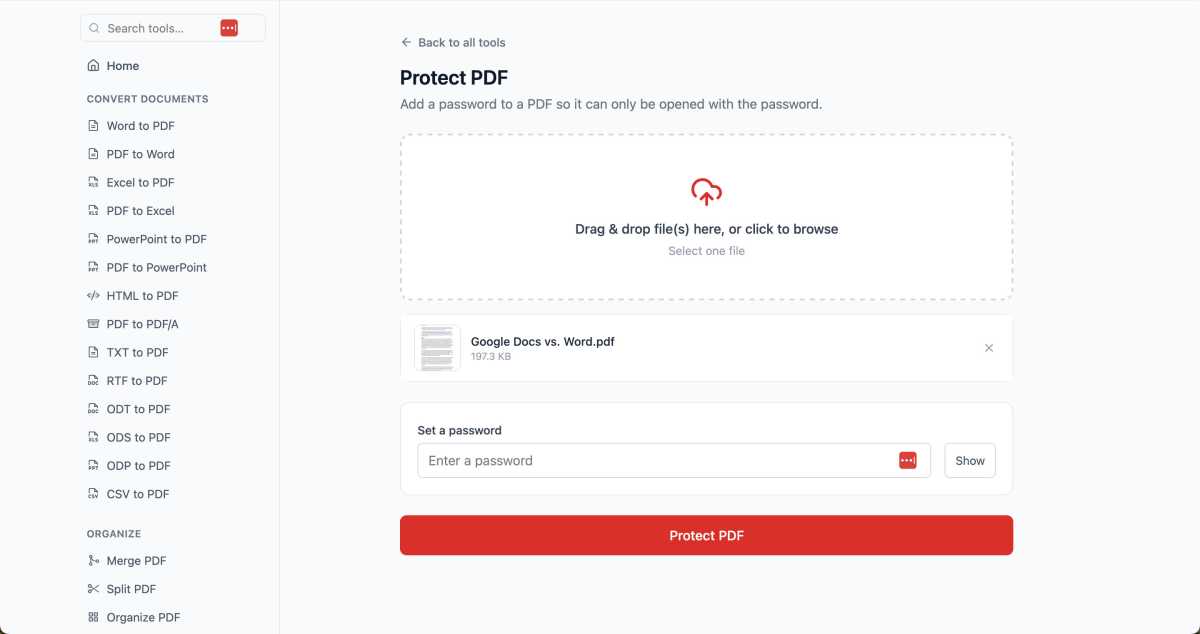
In testing, MyPDFTools’ Protect PDF tool created an AES-256-encrypted file that could not be opened without the password
.
Michael Ansaldo/Foundry
OCR did much better. On a scanned document, it recognized names, dates, currency, identifiers, and percentages, then added a searchable text layer. The reading order wasn’t perfect and some stray text appeared, but the result was usable. OCR supports only English and files up to 30 pages.
Privacy and trust concerns
There’s also limited information about who runs the service. The site doesn’t name a company or provide an address, and contact is handled through a web form. The governing-law section of the terms contains what appears to be placeholder text—“These terms are governed by the laws of [Your State/Country]”—instead of identifying a jurisdiction. The homepage also says employees at several companies use the service, though it provides no supporting detail for those claims. None of this necessarily signals a problem, but it leaves users with less information to go on when deciding whether to upload sensitive documents
Should you use MyPDFTools?
MyPDFTools is easy to use and useful for simple, low-stakes work. Its tools cover many common needs without requiring payment or an account, which makes it a compelling option for quick PDF tasks.
I would avoid it for detailed editing, faithful PDF-to-Office conversion, or sensitive material until those tools are improved and the site is clearer about who operates it and how uploaded files are handled.