
Testing old drives as external storage to avoid price hikes — hard drive, SATA SSD, and NVMe in enclosures up to 80 Gbps, tested
AI-driven demand has pushed prices to insanely high levels for the best external SSDs and the best flash drives — if you can find those sought-after models in stock at all these days. But if you’re a long-time PC builder or you’ve upgraded your laptop’s boot drive in the last decade, there’s a good chance you have an older drive of some kind sitting in a drawer or in a closet, doing nothing more useful than collecting dust.
Whether it’s a SATA SSD, an OEM M.2 from an older laptop, or even a spinning hard drive, you can turn any of these into handy external storage by picking up one of the best SSD and hard drive enclosures, with some options selling for less than $10 when on sale. In most cases, you won’t even have to mess with a screwdriver. Just open the enclosure, drop in your old drive, and you’re good to go.
Of course, the drive you have and the enclosure you choose will dictate how fast your DIY external drive will be. But speed doesn’t matter much if you’re just doing simple backups or transferring a few files. And even a SATA SSD is pretty speedy for most mainstream tasks. If you’re using the drive to edit lots of 4K video, doing animation work, or running local LLMs, you’ll need a faster, newer PCIe 4 or 5 M.2 SSD and an enclosure that can deliver as much bandwidth as your fastest USB-C port can handle.
To break down the kind of speed you can expect from digging out an older hard drive or SSD and putting it to work as external storage, we installed several older drives (and even a speedy recent PCIe 5 model) into various enclosures and put them through some of the same tests we use for testing brand-new drives. And we’ll compare those results to speedy dedicated external SSDs and flash drives, to see what, if any, speed you might lose.
Of course, every individual drive model will have its own performance variances, as we see when testing internal SSDs, but the results and charts below will give you a sense of what to expect, generally, from whatever class or type of drive you happen to have at your disposal, and whether it’s speedy enough for your needs.
I grabbed four different drives, three of which were older drives of various types that I found in my storage drawer or in older enclosures, and ran some of the tests that we typically run for external storage reviews, to see how they perform compared to a high-end flash drive and a fast external SSD.
Drives
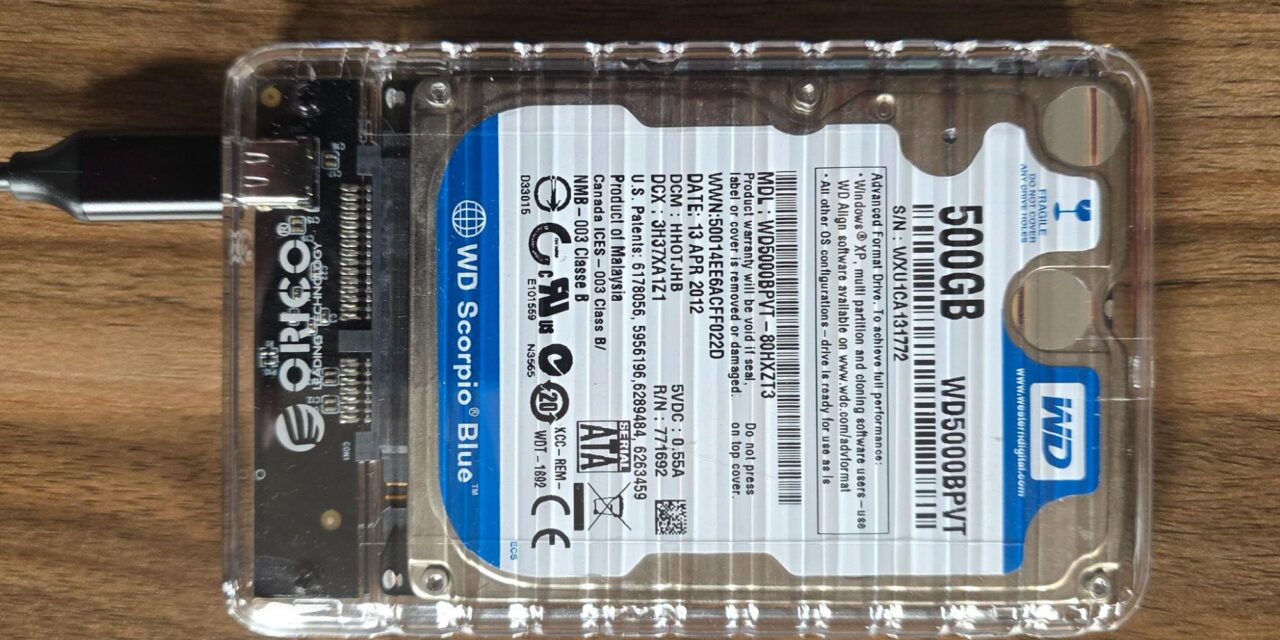
▶️ Western Digital WD5000BPVT 2.5-inch hard drive (500GB)
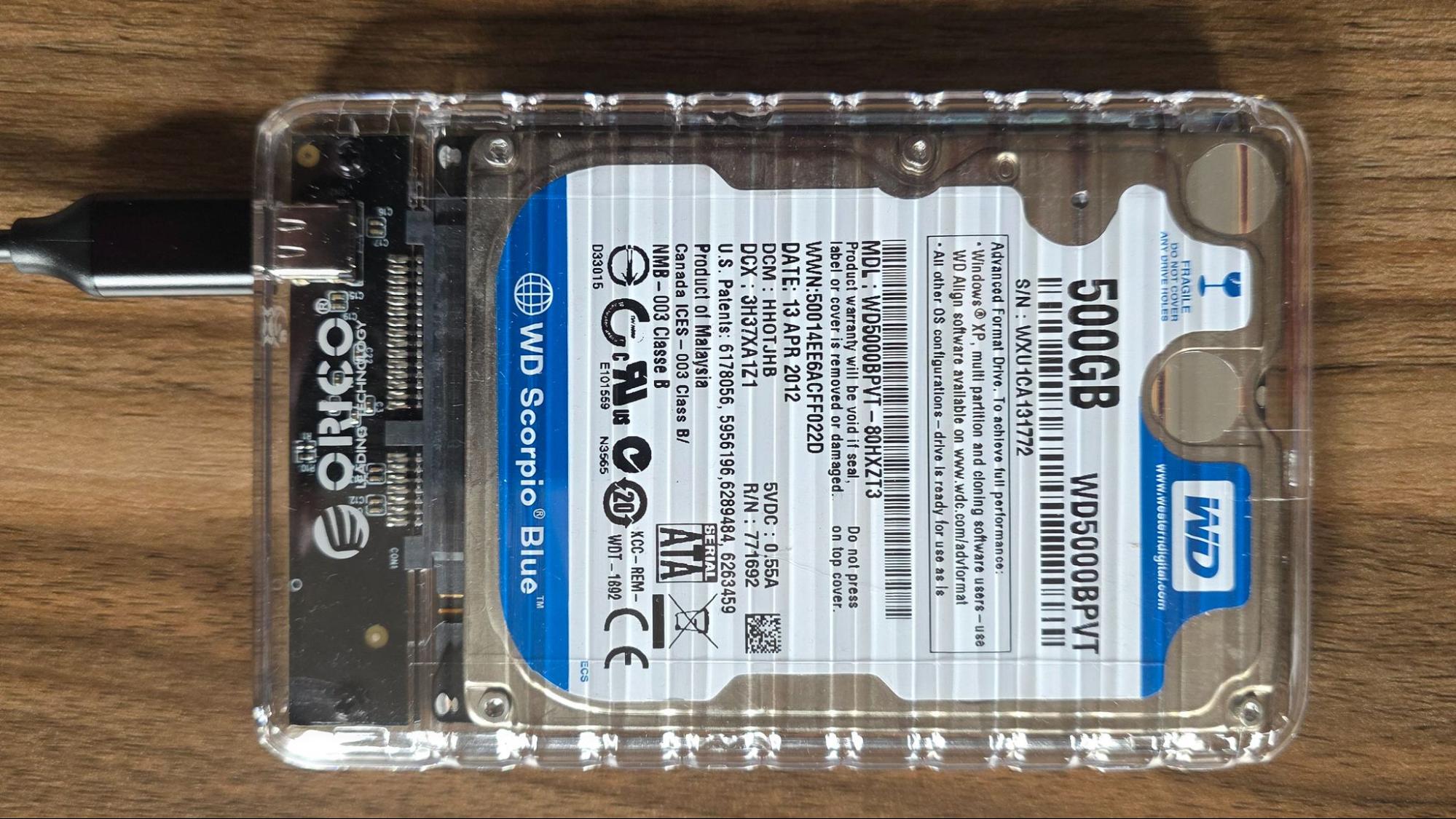
This 2011-era 2.5-inch hard drive either came from an old laptop or was something left over from testing in a previous job. I’ve held onto it, in part, as a photography prop to show storage options in PC cases. It’s clearly not a fast drive, but a good representation of the lowest-tier option to build your own portable storage drive.
▶️ Samsung 850 Pro 2.5-inch SATA SSD (512GB)
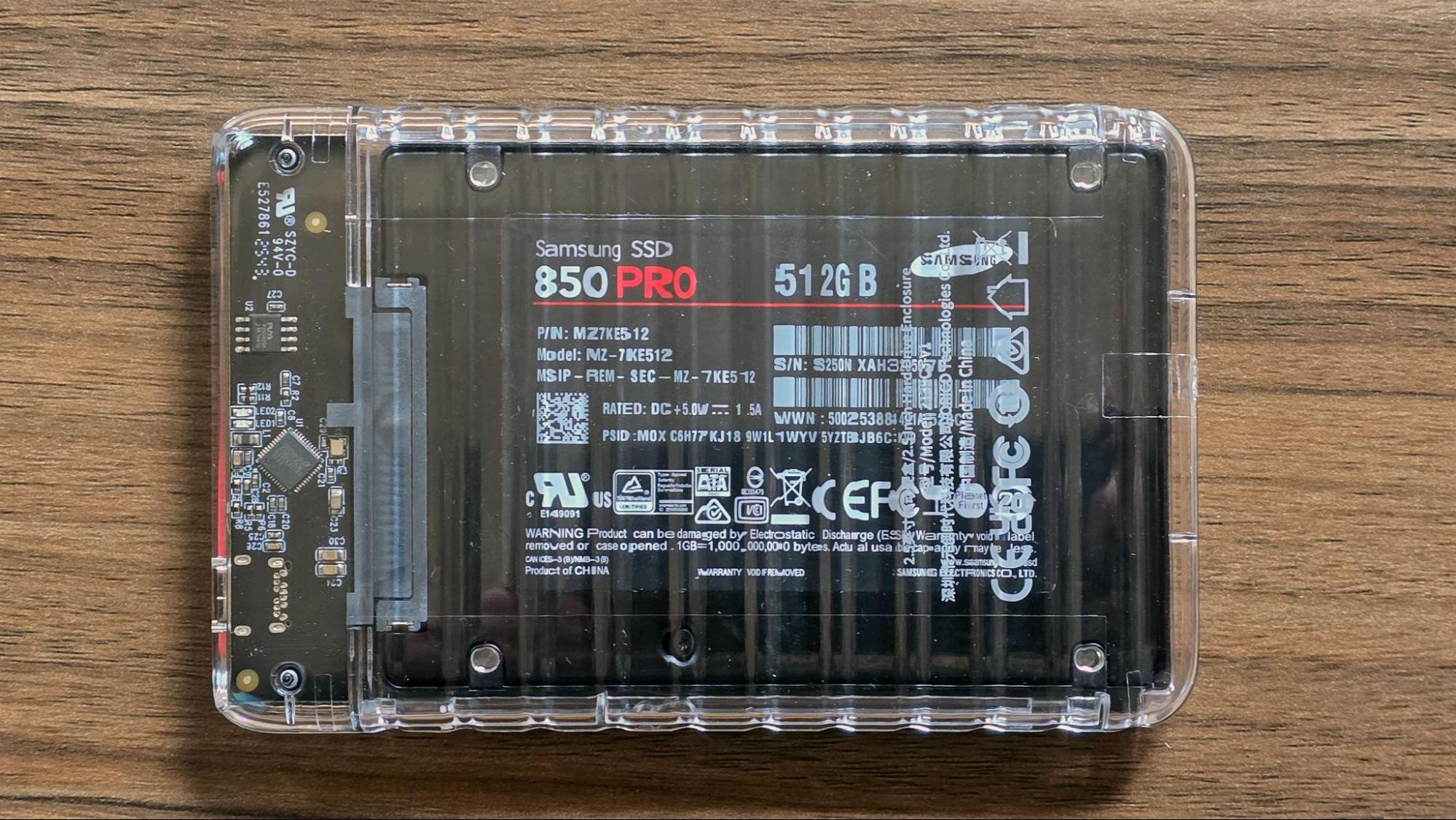
I originally intended to use my old Crucial MX100 2.5-inch SATA drive for this test (as seen in the main image, above), but when I plugged it in (for the first time in at least five years), it was effectively dead, as it wasn’t recognized by any PC I connected it to. So I pivoted to a Samsung 850 Pro, a slightly higher-end drive from the same year (2014). It’s sure to be much faster than the spinning-platter hard drive, but as a SATA drive, it’s going to top out around 550 Mb/s.
▶️ Intel 660p PCIe 3.0 NVMe SSD (2TB)
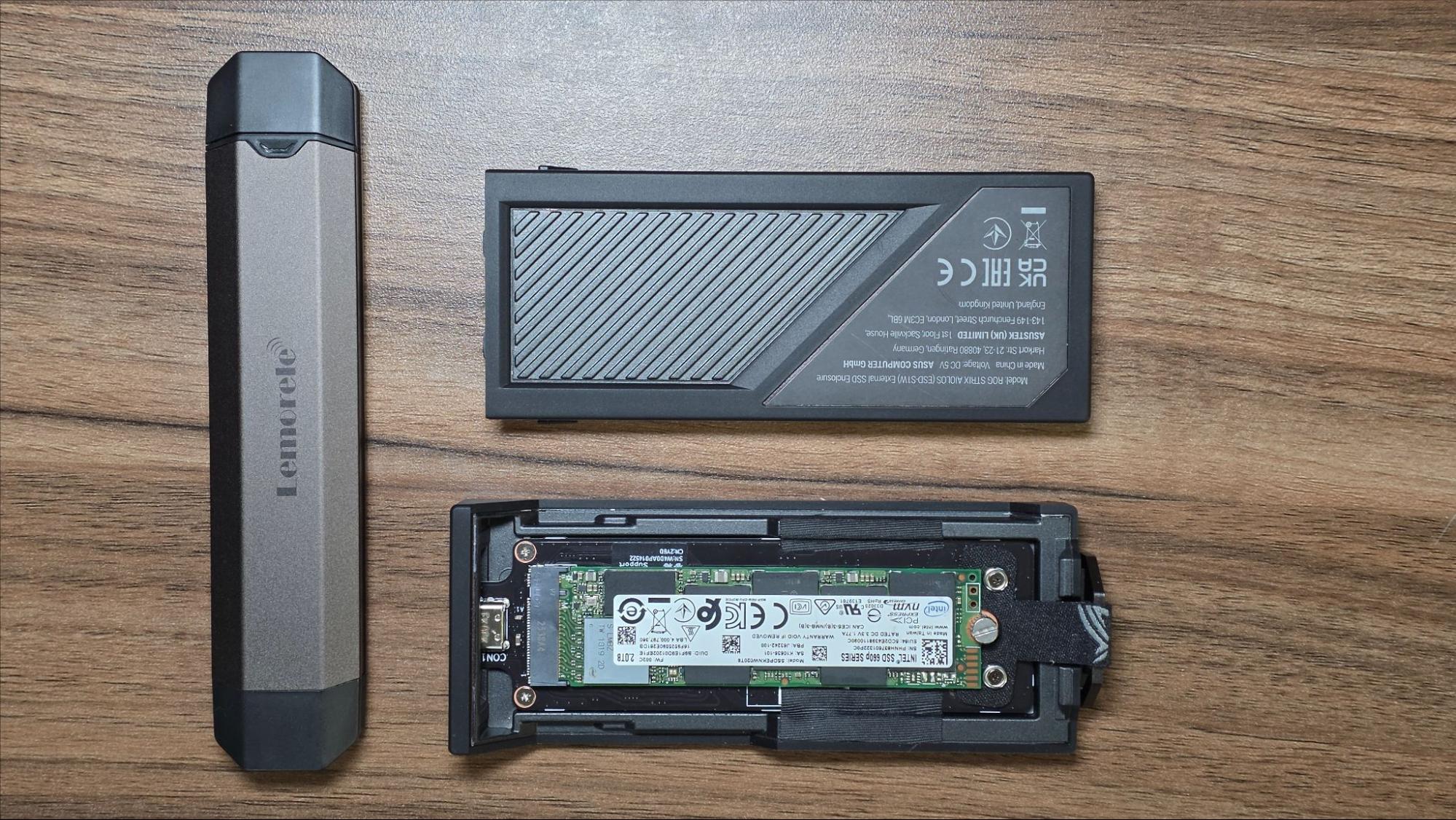
I picked up a 2TB Intel 660p back in 2019 for $109 (the first time SSDs got really cheap), to use as an external drive. I eventually replaced it with a 4TB Samsung 990 Evo Plus that I bought for $199 about a year ago (the last time storage was cheap). It’s rated to 1,800 MB/s read and write at that capacity, so it’s good for any 10 Gbps or 20 Gbps enclosures, which is why we tested it in both. But if you’re after USB4 or Thunderbolt 3+ speeds, you’ll want something faster.
▶️ Gigabyte Aorus 12000 PCIe 5.0 SSD (1TB)
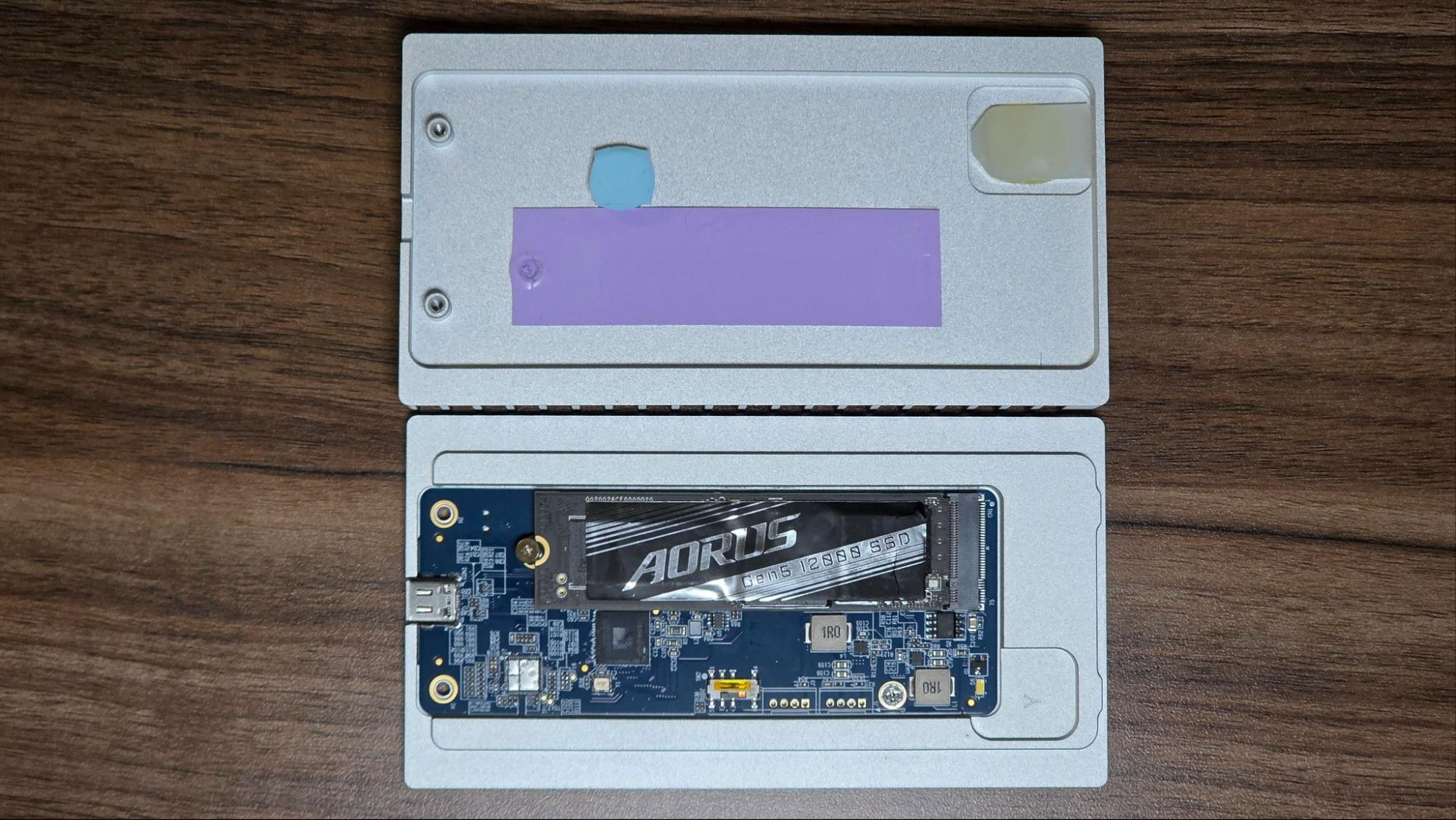
If you want to put together an external drive that’s as fast as reasonably possible with a single M.2, you’re probably not going to have a drive like that sitting unused in a drawer. So to see what is possible with an SSD that you might pay for, specifically to build an external drive with the fastest possible speeds, I grabbed the Aorus 12000 PCIe 5.0 SSD from Gigabyte. At the 1TB capacity I tested, its rated sequential read (11,700 MB/s) and write (9,500 MB/s) speeds aren’t going to be a significant bottleneck, even if you opt for a Thunderbolt 5 enclosure.
Enclosures
▶️ Orico 2139U3-V1 Clear HDD/SSD enclosure (5 Gbps)
There are loads of affordable enclosures for 2.5-inch SATA hard drives and SSDs. You’ll want one with UASP support for faster transfers if you are or plan to ever install an SSD, and most are plastic these days. I opted for this one both because I like its transparent shell (so I can see what drive is housed inside) and because it often goes on sale for less than $10. It’s $10.99 at full price, but I paid around $8 for it. It snaps together without the need for any screws, which is convenient. But if you’re carrying the drive around regularly, I could see the cover falling off now and then.
$8.99 at Amazon
▶️ Lemorele SD3L NVMe M.2 SSD enclosure (10 Gbps)
Affordable M.2 SSD enclosures are also easy to find online. I chose this one, because, again, it sells for around $10. Plus it has a built-in USB-C and USB-A port (one on each end), so you’ll never need to fish for a cable, making it kind of like a large flash drive. It also lets you drop in a drive without a screwdriver or other tools. Its main downside is that it doesn’t support older SATA M.2 drives, so it’s only good for NVMe models.
$9.49 at Amazon
▶️ Asus ROG Strix Aiolos NMVe/SATA M.2 SSD enclosure (20 Gbps)
This premium metal enclosure is also tool-free, and helpfully supports both NVMe and SATA M.2 drives – the former at speeds up to 20 Gbps so long as you have a system with a USB 3.2 Gen 2 2×2 port. It also has some flashy RGB and includes a carrying strap that can make fishing it out of your bag a little easier.
$65.22 at Amazon
▶️ OWC Express 1M2 USB4 / 40Gbps enclosure
An enclosure meant for fast PCIe 4.0 or 5.0 SSDs, this premium model is effectively a large hunk of aluminum with fins for heat dissipation. And when your drive could be slinging data at up to 5,000 MB/s, you’ll need that kind of cooling to keep speeds from dropping due to heat. It’s far from the cheapest or the smallest, but if you’re after some of the fastest external speeds possible from a single drive, you don’t want to skimp on something smaller and cheaper. And I prefer this kind of larger, passive cooling over something with a tiny, whiny fan.
$78.99 at Amazon
Comparison of external SSDs and flash drives
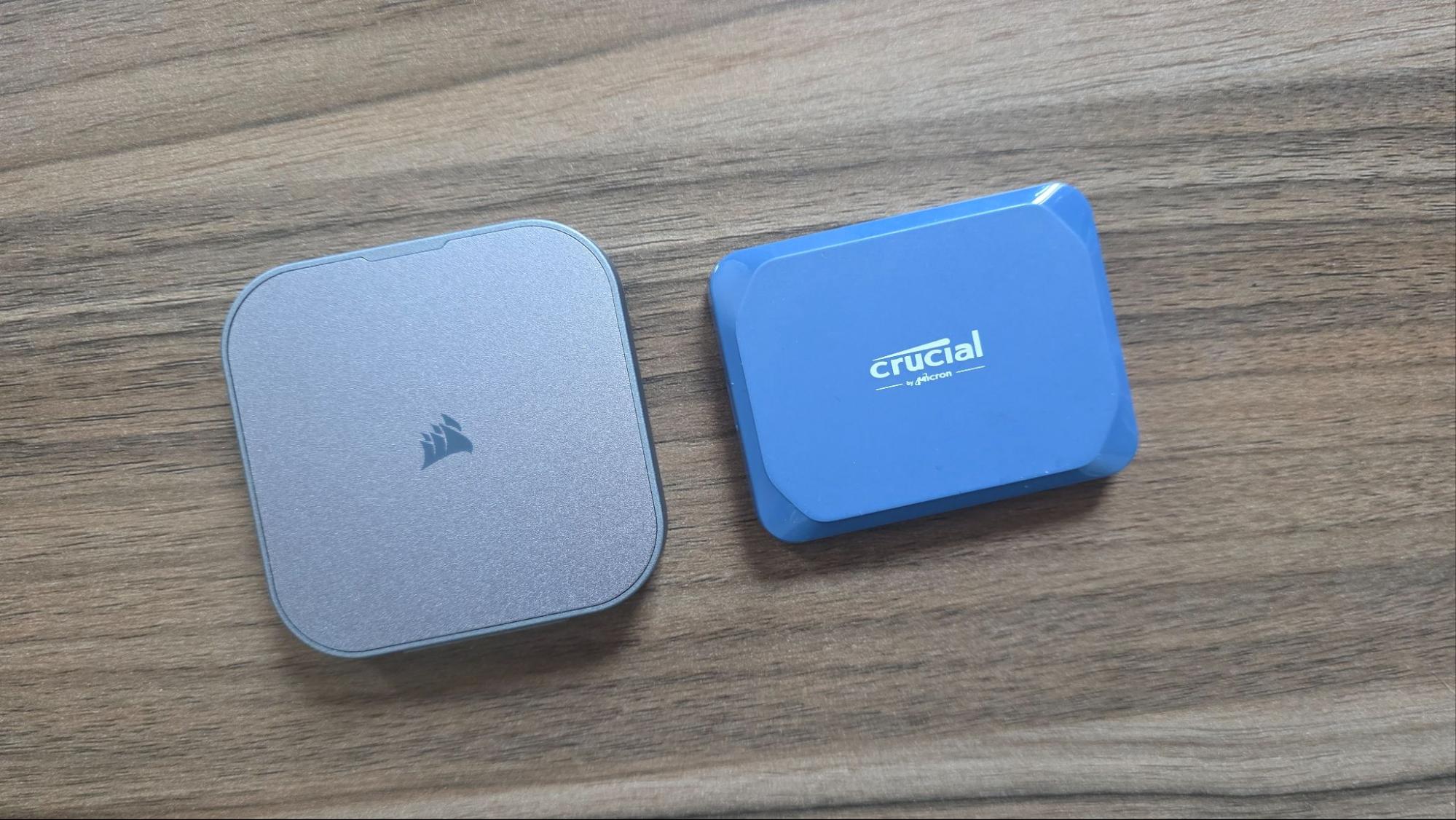
To get a sense of how our DIY external drives compare to retail external storage, we will include results in our charts from a trio of current options. On the 10 Gbps front, there’s the 1TB Kingston Dual Portable SSD (in a flash drive form factor with USB-C and USB-A ports) that was selling for $226 when this was written.
Stepping things up to 20 Gbps, we have the Crucial X10, a compact drive that we tested in 4TB trim. That capacity doesn’t currently appear to be available, but the 2TB option was $304 at Amazon. The key consideration with this (and any 20 Gbps drive or enclosure) is that you’ll need a 20 Gbps USB 3.2 Gen2 2×2 port to achieve top speeds. Even if your system has a technically faster USB4 or Thunderbolt port, there’s a good chance your drive will be capped at 10 Gbps, because the two-lane 10 Gbps configuration in Gen 2 2×2 differs electrically from USB4 (which is itself built around Thunderbolt 3). Unless you have a specific need, it’s smarter to opt for a USB4 or Thunderbolt drive or enclosure at this point.
Speaking of USB4, we also included our favorite drive of that flavor, Corsair’s EX400U. It sports a magnetic back for attaching to some phones (and various other things with iron in them), and was selling for over $600 in the 2TB capacity we tested when this was written. Naturally, storage prices are in flux right now, so prices may be different.
Enclosure and drive testing
We tested our drives and enclosures on our USB4-equipped storage test PC, running a Ryzen 5 7600X CPU and Asus’ ROG Crosshair X870E Hero motherboard.
▶️ Synthetic Testing: CrystalDiskMark
CrystalDiskMark (CDM) is a free and easy-to-run storage benchmarking tool that SSD companies commonly use to assign product performance specifications. It gives us insight into how each device handles different file sizes. We run this test at its default settings. The sequential read and write test effectively amounts to a best-case scenario, which often closely aligns with the read /write specs that drive makers put in their specs and on the product box.
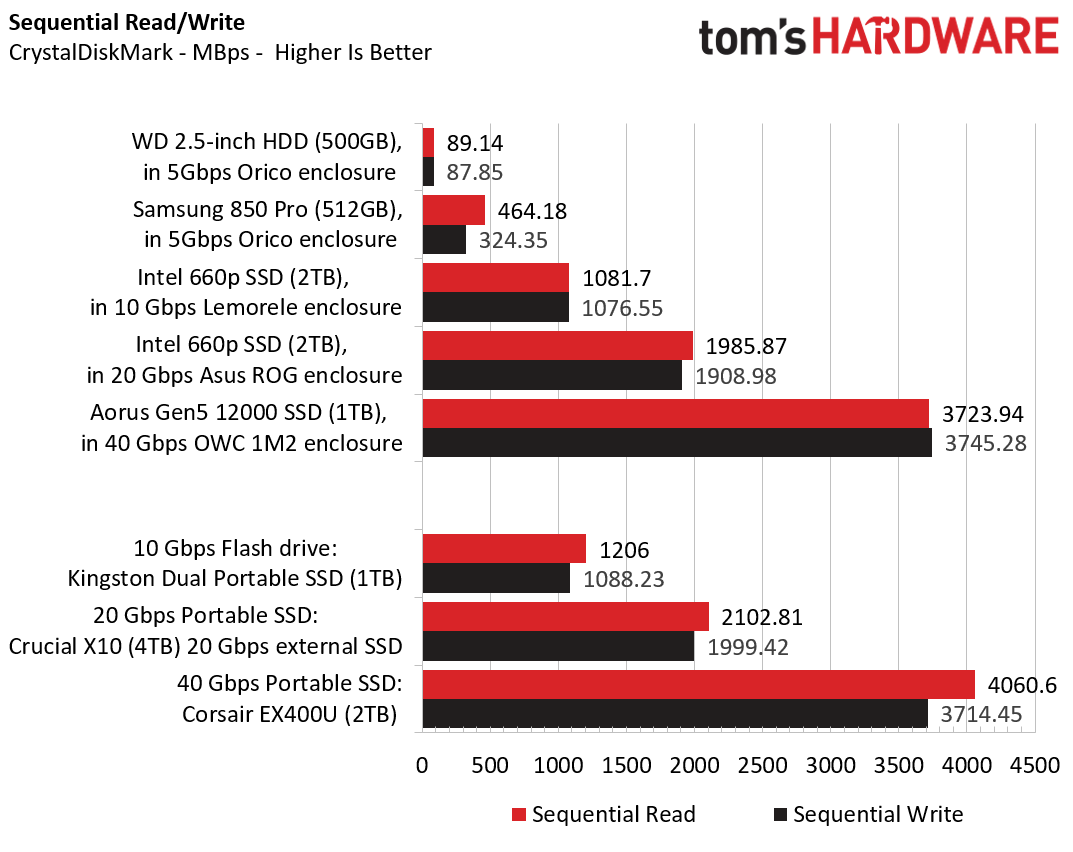
Unsurprisingly, the 2.5-inch hard drive in our Orico enclosure lands last here, putting up reads and writes a bit below 90 MB/s. That’s OK for incremental backups and if you only occasionally need to carry around files. But the Samsung 850 Pro is 4-5 times faster in the same enclosure. Speeds below 500 MB/s might seem slow compared to modern SSDs, but it’s perfectly serviceable for most tasks, and even running programs.
If you are regularly moving around terabytes of data, though, you’ll want something faster. Intel’s 660p passed 1,000 MB/s on this test in reads and writes. That’s a little slower than our 10 Gbps flash drive, especially on reads, but close enough that you wouldn’t notice the difference between the two without running benchmarks.
Dropping that same 660p SSD into the 20 Gbps Asus ROG enclosure, it got close to, but not quite over 2,000 MB/s. The Crucial X10 was about 100 MB faster, but again that’s about a 5% difference. So if you have a decent PCIe 3.0 drive sitting around that you can drop into an enclosure, you can get performance that’s very close to the much costlier competition.
Stepping up to our PCIe 5.0 Aorus SSD in the large aluminum OWC enclosure, reads and writes topped 3,700 MB/s. On writes, that actually beat Corsair’s excellent EX400U, although the OWC-enclosed Aorus did lag about 10% behind on reads. And even if you’re buying a bare 2TB PCIe 5 drive and the OWC enclosure, it will cost much less than the Corsair’s current $600-plus for the same capacity. A 10% performance difference isn’t bad, considering.
The CrystalDiskMark 4K read / write test is more of a measure of how well a drive handles a plethora of small files, the kind of workload you might encounter when running a program, an OS, or a game directly from the drive.
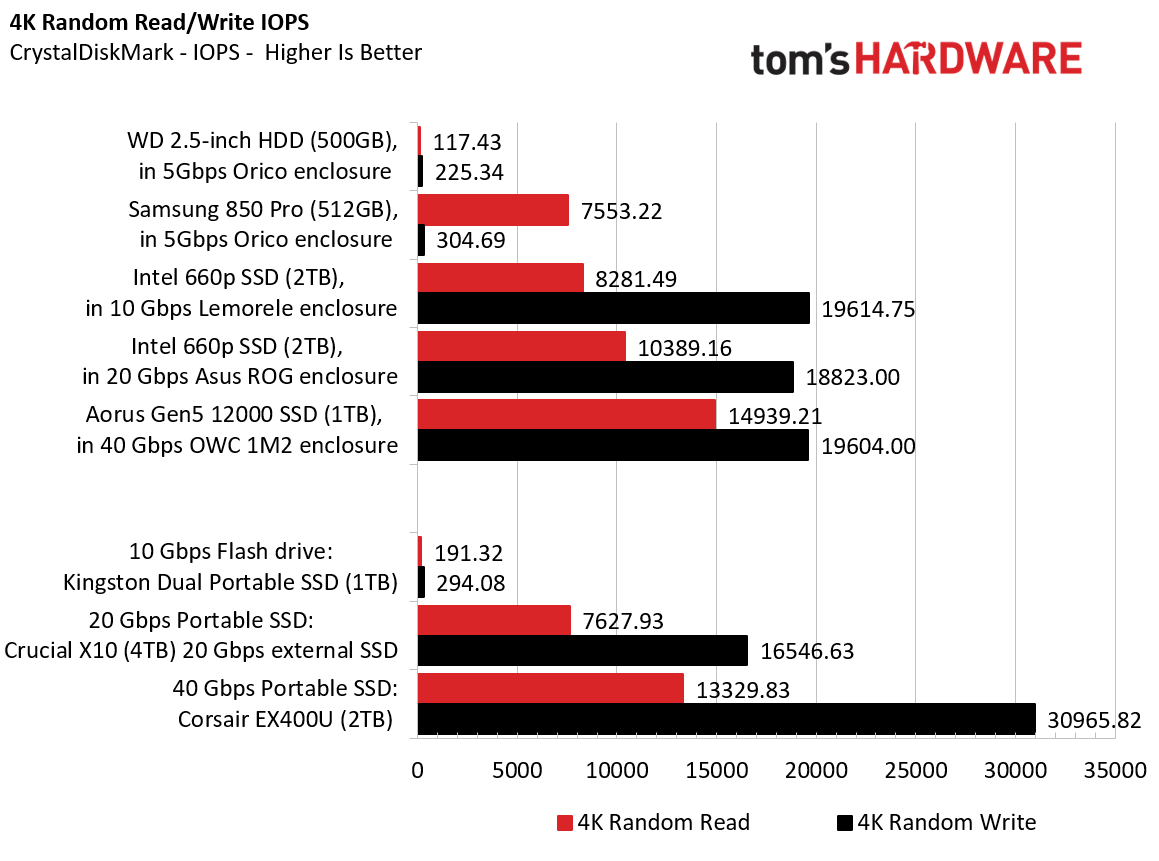
On this test, we see the flash drives are poor choices for running programs or an OS directly from the drive – the 850 Pro doesn’t look great on writes, either, although it’s a drive that I’ve used as a boot SSD in the past. But the Intel drive in the 10 and 20 Gbps enclosure did better here than the Crucial X10 drive.
On the fast 40 Gbps front, our Aorus test drive and OWC’s enclosure did better on reads, but the Corsair EX400U was much faster with small file writes. In reality though, everything but the sub-10 Gbps drives and the Kingston Dual drive should handle small file performance well in most use cases.
▶️ Transfer Rates: DiskBench
We use the DiskBench storage benchmarking tool to test real-world file transfer performance with a custom 50 GB dataset. We copy 4,617 files (images, videos, and software ISO files) to a folder on the test drive (write). Then, after leaving the system idle for five minutes, we run the same test in reverse, moving the test folder to a different location on our PCIe 4.0 testing drive. This is a separate drive from our boot drive to avoid slowdowns due to the operating system background tasks that can be difficult to control.
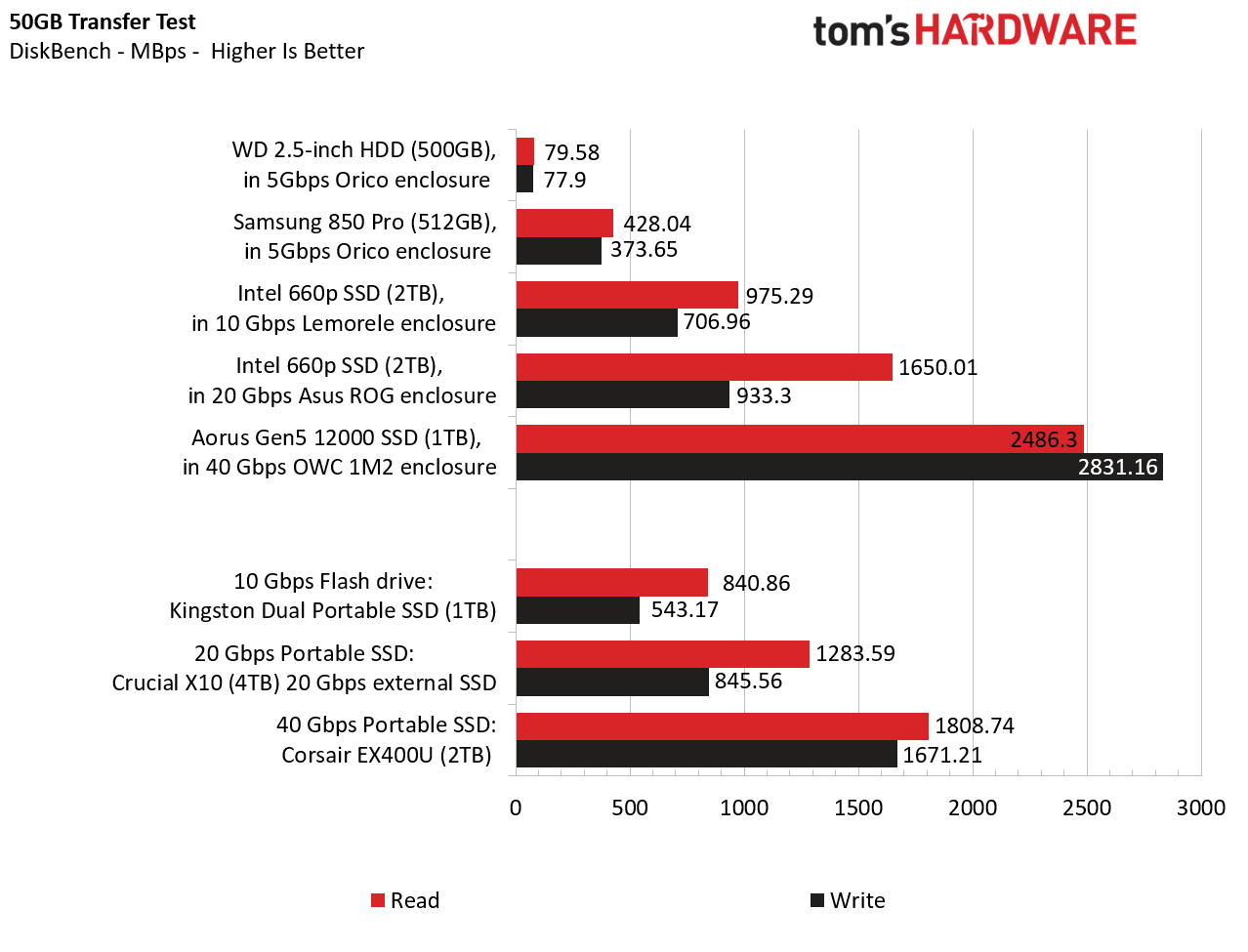
In this real-world file transfer test, we see somewhat similar, though slower results as we saw with the synthetic sequential test above. Things look better for the Kingston flash drive here, but our 660p Intel drive in the 10 Gbps enclosure is still faster (it jas a thermal advantage being a much larger drive, physically). And the same drive in the 20 Gbps Asus enclosure again beats the 20 Gbps Crucial drive — and significantly when it comes to reads.
Looking at our USB4 OWC enclosure with the Aorus PCIe Gen 5 drive, it impressively blows away the Corsair EX400U. Both drives are fast, but our DIY USB4 drive is nearly 38% faster on reads and almost 70% faster on writes. I suspect some of the advantage comes from the fact that the OWC enclosure is about 5x larger and entirely made out of aluminum, while the Corsair drive has a metal top, but otherwise the shell is mostly plastic.
Final Thoughts
Older drives don’t lose much speed in the right enclosure
We could do a few more tests, but one thing is clear. Depending on what spare drive you have on hand and the enclosure you use, you don’t necessarily have to lose any speed if you opt for building your own external storage enclosure rather than buying a retail external drive. Of course, if all you have is a hard drive, you’re going to get external hard drive speeds, which are mostly good for basic backup and / or moving a few files between devices. If you have an old SATA SSD, dropping it into the same 2.5-inch enclosure should give you speeds 3-5 times faster than a portable hard drive, which is plenty fast enough to be useful for mainstream tasks. And if all you need to do is buy an enclosure for $8-$15 and drop in an old drive, that’s easily the best value in external storage these days. If you have an old SATA M.2 SSD, getting an enclosure for it for less than $20 is a similarly excellent money-saving option.
If you’re lucky enough to have an old PCIe 3 NVMe M.2 drive hanging around that you can drop into a 10 Gbps or 20 Gbps enclosure, you can get speeds nearly as fast and, in some cases faster, than competing drives that cost hundreds of dollars.
And if you truly need the fastest external storage speeds, even if you have to buy a 1TB or 2TB PCIe 4 or PCIe 5 drive and a sub-$100 enclosure, you can still achieve comparable or better speed than some of the fastest USB4 options, for hundreds less – although you’ll still likely have to spend a few hundred dollars to get there.
In short, we may lament the fact that component price hikes have driven up the cost of components to the point that it’s usually cheaper to buy one of the best prebuilt PCs these days than building one yourself. But it’s still often cheaper to build your own external SSD than to buy one at today’s inflated prices. And if you happen to have a suitable drive sitting around that you aren’t using, one you can insert into an enclosure, you could easily save hundreds of dollars. Just remember to check the drive’s health before using it to store any irreplaceable data. Because if your old drive had an active life as a boot drive in years past before you replaced it, it could be on its last legs, and no one wants to piece together an external drive only to have it fail after a few weeks or months of use.