TP-Link Deco 7 Pro BE13000 Wi-Fi 7 mesh router review: Value pricing, but average performance
TP-Link has a rather expansive family of Wi-Fi 7 mesh routers, and it can often be confusing to keep up with the growing assortment. We’ve tested several Deco Wi-Fi 7 mesh routers over the past three years, and they’ve offered class-competitive performance and a well-designed app for controlling all aspects of the network.
Today, we’re taking a look at the Deco 7 Pro BE13000, which is one of TP-Link’s tri-band “whole home mesh Wi-Fi 7” systems. It’s also a rather interesting option, as it’s exclusively available at Costco as a 3-pack. With a selling price of $399 and coverage for up to 8,100 square feet, the Deco 7 Pro BE13000 has stiff competition among the best Wi-Fi routers.
Design of the TP-Link Deco 7 Pro BE13000
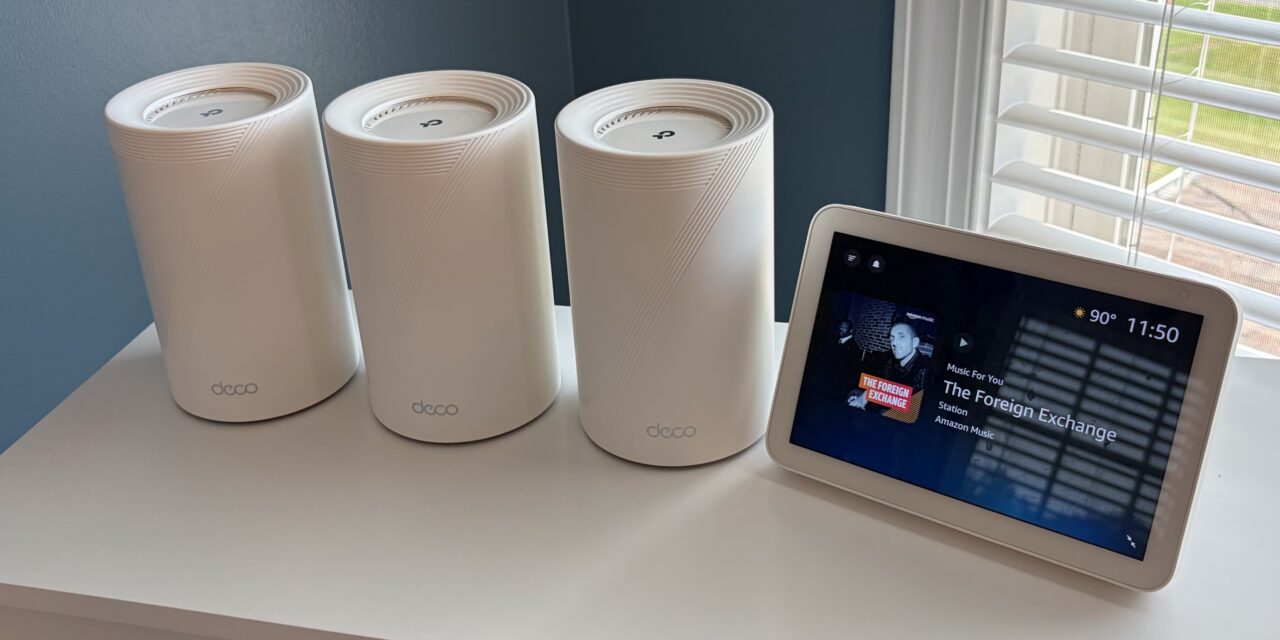
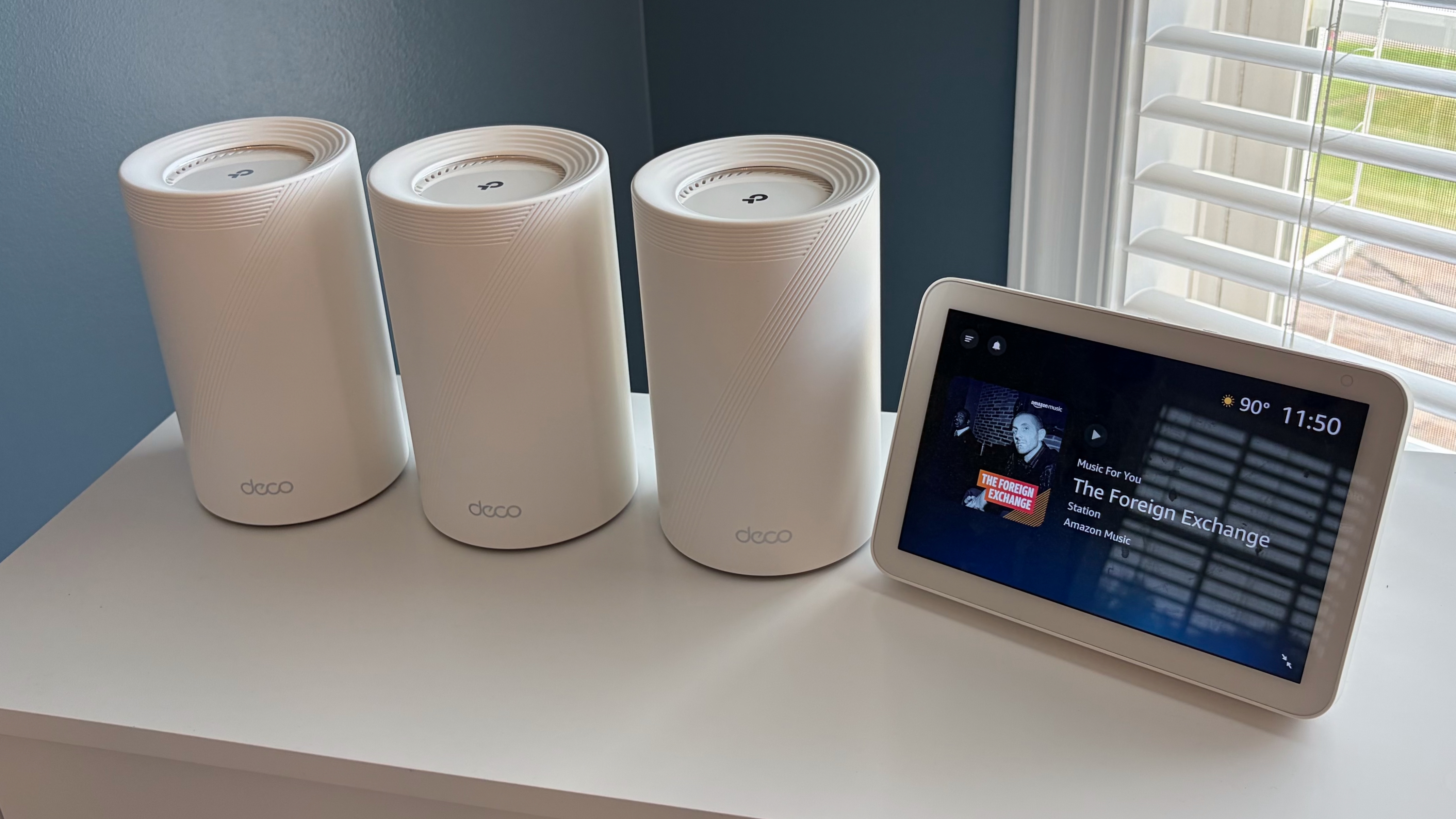
Like all other members of TP-Link’s tri-band Wi-Fi 7 mesh family, the satellites on the Deco 7 Pro BE13000 are white cylinders measuring 4.23 inches in diameter and 6.93 inches in height. A stylized “7” is molded into the plastic, and the top of the unit features the TP-Link logo under a clear circular cover. Looking down, the molded concentric circles give the impression that the logo suggests a splash in a puddle of water.
Beneath the stylized 7 on the front of the satellite, there’s “deco’ branding, and below it is a status LED. It blinks blue during setup, is solid green when the satellites are online, and stays solid red if there’s a connectivity problem. Out back is where things get a bit interesting. The slightly lower-positioned Deco BE63 features four 2.5 GbE LAN/WAN ports. The Deco 7 Pro BE13000, on the other hand, only has three LAN/WAN ports, and they’re oddly spec’d. You get one GbE, one 2.5 GbE, and one 5 GbE port.
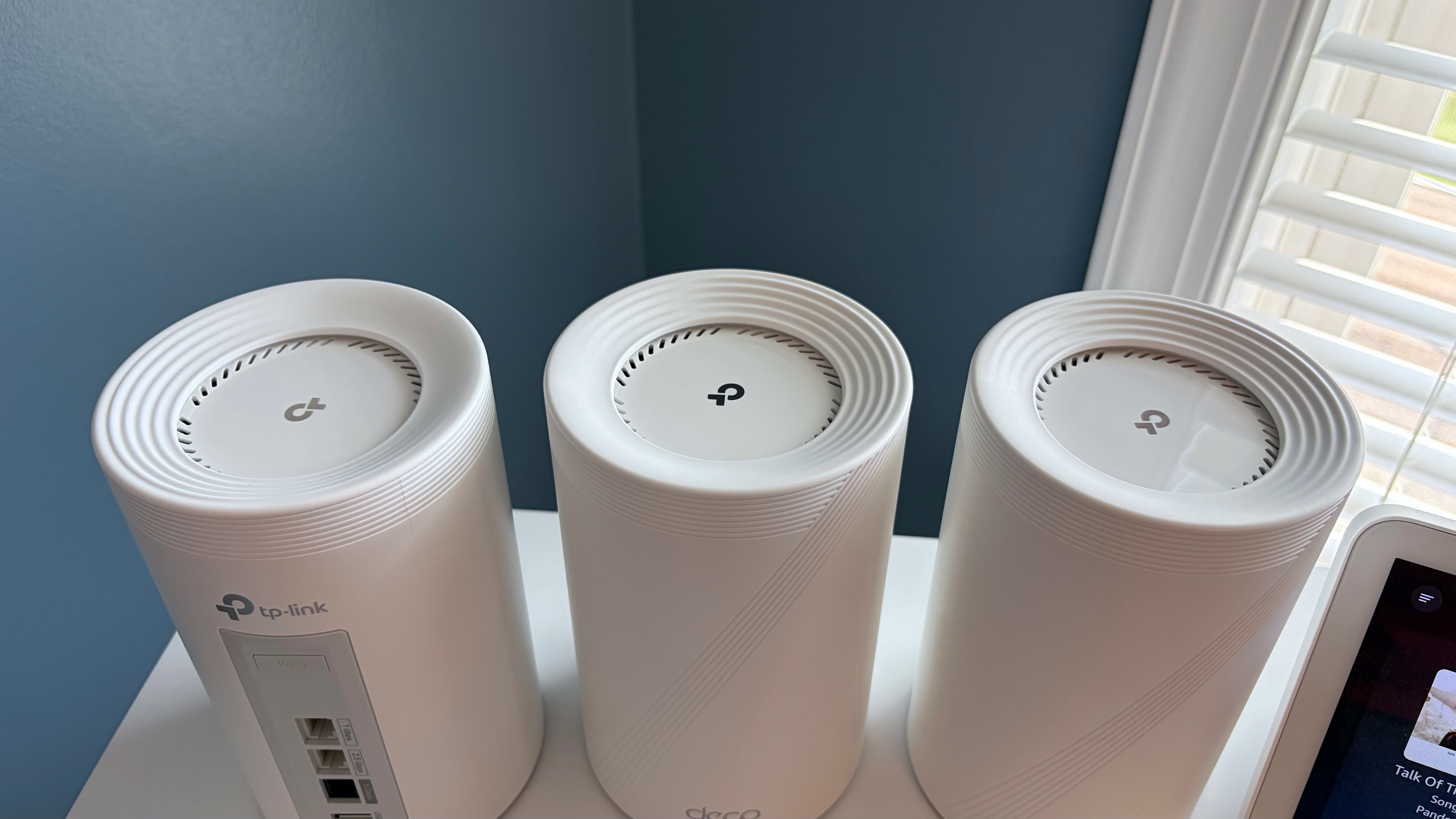
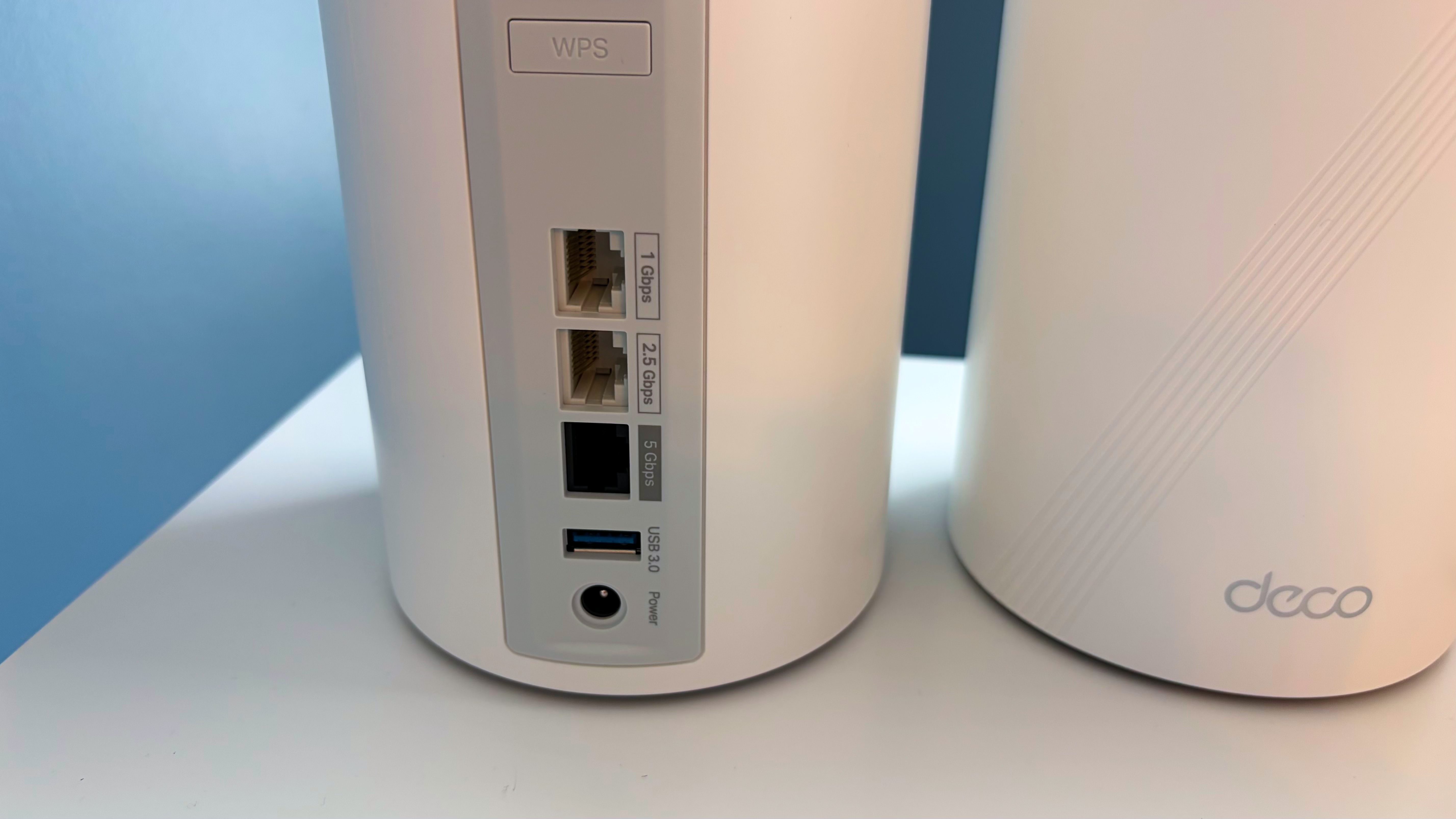
Personally, I would have preferred four LAN/WAN ports: two 2.5 GbE and two 5 GbE. At the very least, the single GbE port should have been replaced with a 2.5 GbE port. In addition to the LAN/WAN ports, there’s also a USB 3.0 port for storage. The port allotment is the same across all three wireless nodes.
TP-Link Deco 7 Pro BE13000 Wi-Fi 7 Mesh Router Specifications
|
MSRP |
Wi-Fi Standard |
# of Bands |
2.4 GHz Speeds |
5 GHz Speeds |
6 GHz Speeds |
Coverage |
Ports (Router) |
|
|
TP-Link Deco 7 Pro BE13000 |
$399 (3-pk) |
Wi-Fi 7 |
3 |
688 Mbps |
3891 Mbps |
8647 |
8,100 sq ft |
1x 1G, 1x 2.5G, 1x 5G WAN/LAN, 1x USB 3.0 |
|
MSI Roamii BE Pro |
$349 (2-pk) |
Wi-Fi 7 |
3 |
688 Mbps |
4323 Mbps |
5,764 Mbps |
6,000 sq ft |
1x 2.5G WAN, 3x 2.5G LAN, 1x USB 3.0 |
|
TP-Link Deco BE63 |
$349 (2-pk) |
Wi-Fi 7 |
3 |
574 Mbps |
4,324 Mbps |
5,188 Mbps |
5,800 sq ft |
4x 2.5G WAN/LAN,1x USB 3.0 |
Setting up the TP-Link Deco 7 Pro BE13000
The setup process for the Deco 7 Pro BE13000 is rather straightforward and is accomplished solely via the TP-Link Deco smartphone app for iOS or Android. Before getting started, you’ll need a TP-Link account, which enables remote management of your network when you’re not at home.
I started the setup regimen by placing the three wireless nodes throughout my house, trying to keep them as evenly spaced as possible. Next, I plugged each node into power. Since all of the wireless nodes are identical, the first one that you plug into your modem will serve as the main router. In this case, I plugged the node in my office into my fiber modem. The setup program asked me to bring my phone close to the router, and it was quickly found; then the configuration process began.
For simplicity, I created a single network, using Deco 7 Pro as the SSID. This single SSID encompasses 2.4 GHz, 5 GHz, and 6 GHz bands. You can also enable MLO, Guest, and IoT networks with further granular controls for the bands that you want to make available. For example, you can limit the Guest network to just 2.4 GHz and 5 GHz traffic (or, only one of the two) at any time. If you want to give guests access to the 6 GHz band, you can do that as well.
After completing the setup (which took under 5 minutes), the network was fully operational. I then went into the advanced settings to check for any firmware updates. One was available, so I downloaded it and installed it across the three wireless nodes.
TP-Link Deco 7 Pro BE13000 Software
TP-Link’s Deco and Tether apps continue to be among the best thought-out and well-rounded apps for wireless routers. And that’s a good thing, because the Deco 7 Pro BE13000 cannot be configured using a traditional desktop web browser – it’s exclusively controlled via the app.
The router homepage provides relevant at-a-glance information about your network. Front and center are your main router and its two satellite nodes. The diagram also shows how the satellites are connected to the main router, which, in this case, is via a 5 GHz/6GHz wireless backhaul. Current upload/download activity is shown, along with a green status light indicating “Everything looks good.” If there were an issue with your network, there would be a red status light and an explanation of what was amiss. You can also see how many devices are actively connected to the network.
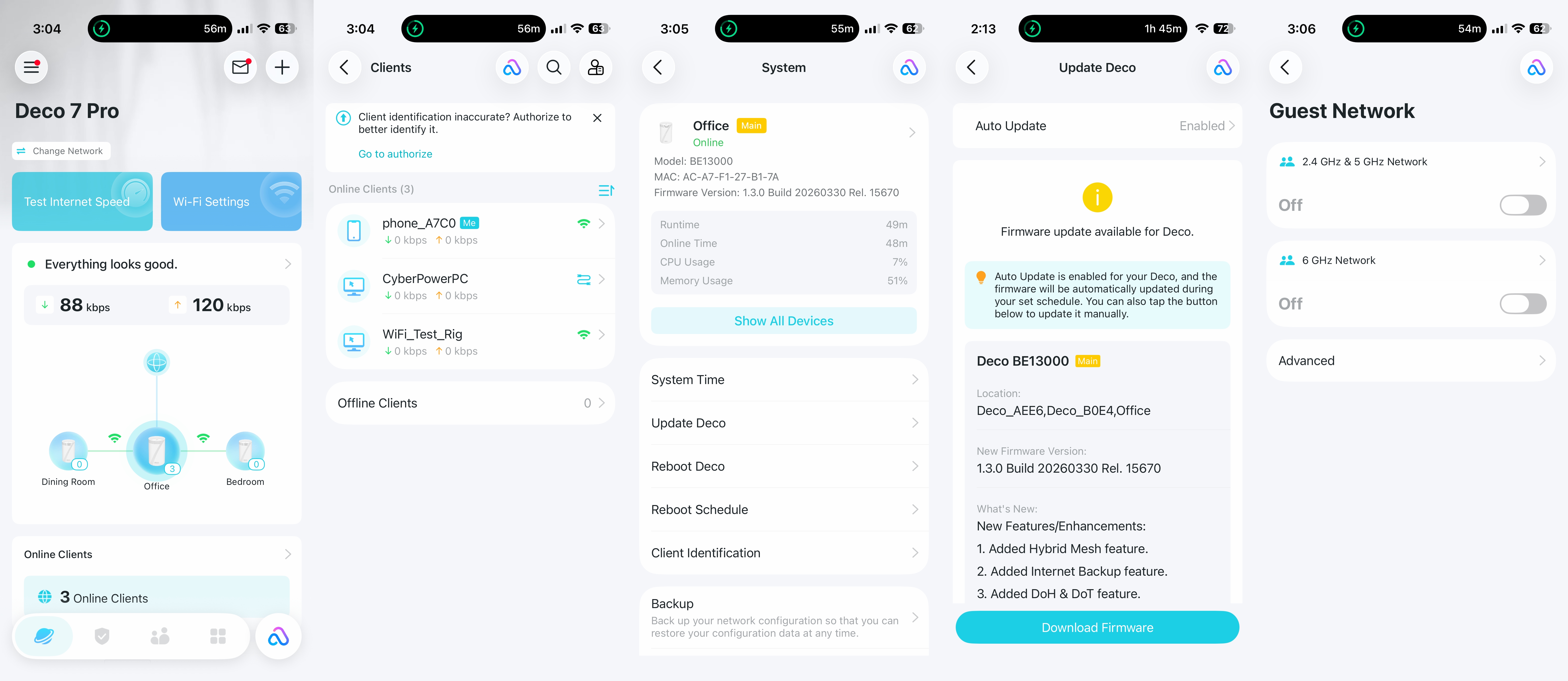
The Security tab offers some basic features without requiring the paid Security+ subscription. However, these are simply quick links to features that are buried in the Advanced settings tab. For example, you can control network access on a per-device basis with Network Access Control and Device Isolation. Camera Security lets you limit internet access to your smart cameras.
Upgrading to the Security+ subscription services gives you more features, including Web Protection, Intrusion Protection, Antivirus, VPN access, and password management (among other security-related features). Security+ costs $35.99/year, while the Total Security Package is $129.99/year. As I’ve mentioned ad nauseam, I have to applaud Asus for providing most of the features (minus the VPN) for free with its AsusWRT platform.
TP-Link offers parental controls that let you create individual profiles for your children’s devices. For $17.99/year, you can enable Advanced Parental Controls, including SafeSearch, YouTube restrictions, bedtime controls, offline control, and more. However, all of these subscriptions seem a bit much for a consumer router. We should note that the Total Security Package includes Advanced Parental Controls. The More tab opens access to the full complement of network settings, from Wi-Fi settings to WPS control, firmware updates, VPN access, and Network Optimization (for optimizing your mesh network to avoid household radio interference).
TP-Link Deco Pro 7 BE13000 Performance
Our wireless client system consists of a Windows 11 Home desktop system with an MSI Herald-BE Wi-Fi 7 adapter. Our testing server was a Windows 11 Professional desktop with a 10 GbE network card connected to the 5 GbE port on the main Deco 7 Pro BE13000 router.
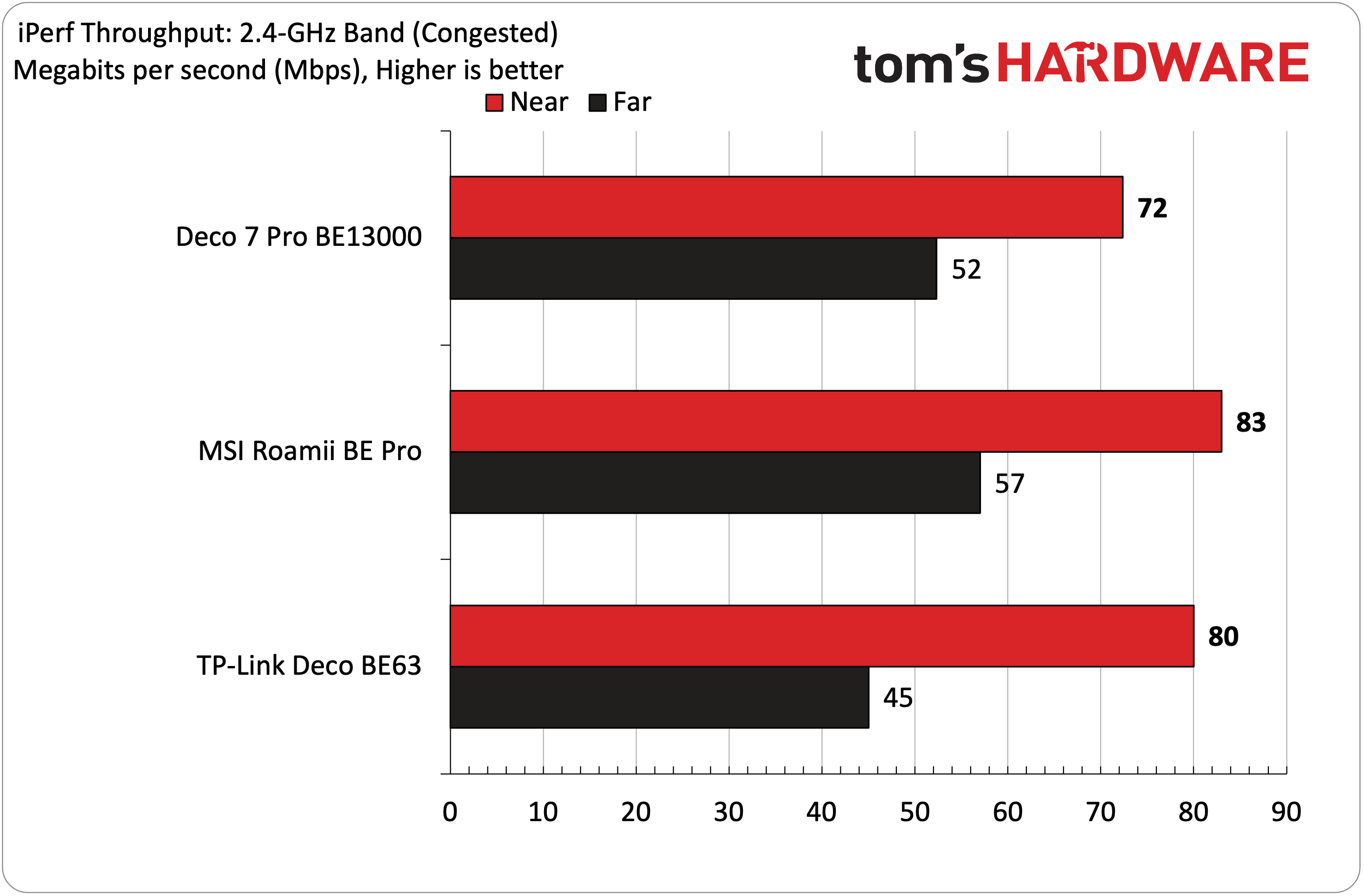
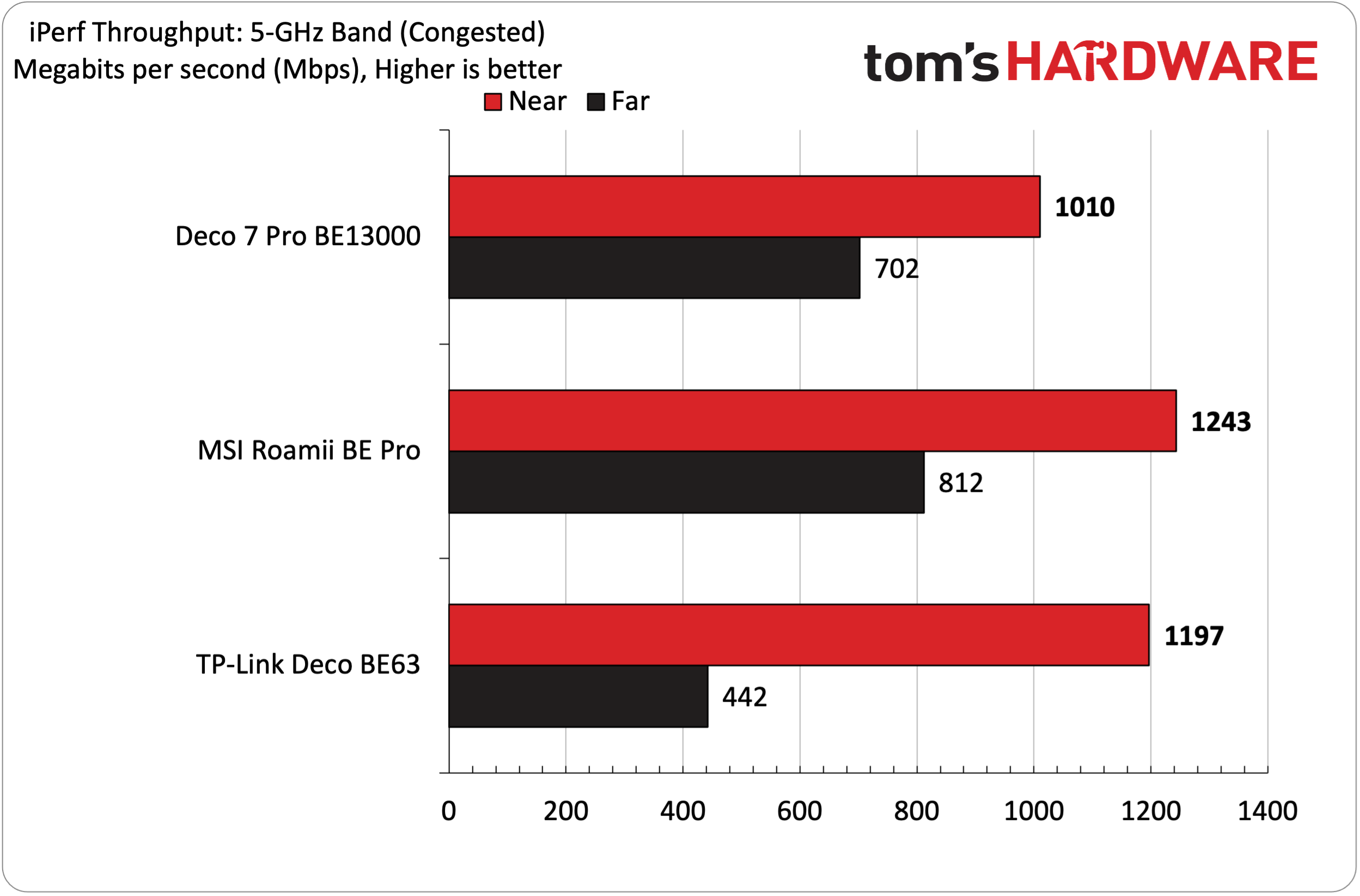
The iPerf3 tests are conducted at six feet and 25 feet (from the main router), with and without traffic across the network. In the congested traffic tests, we add six wireless clients streaming 4K YouTube videos evenly across all bands.
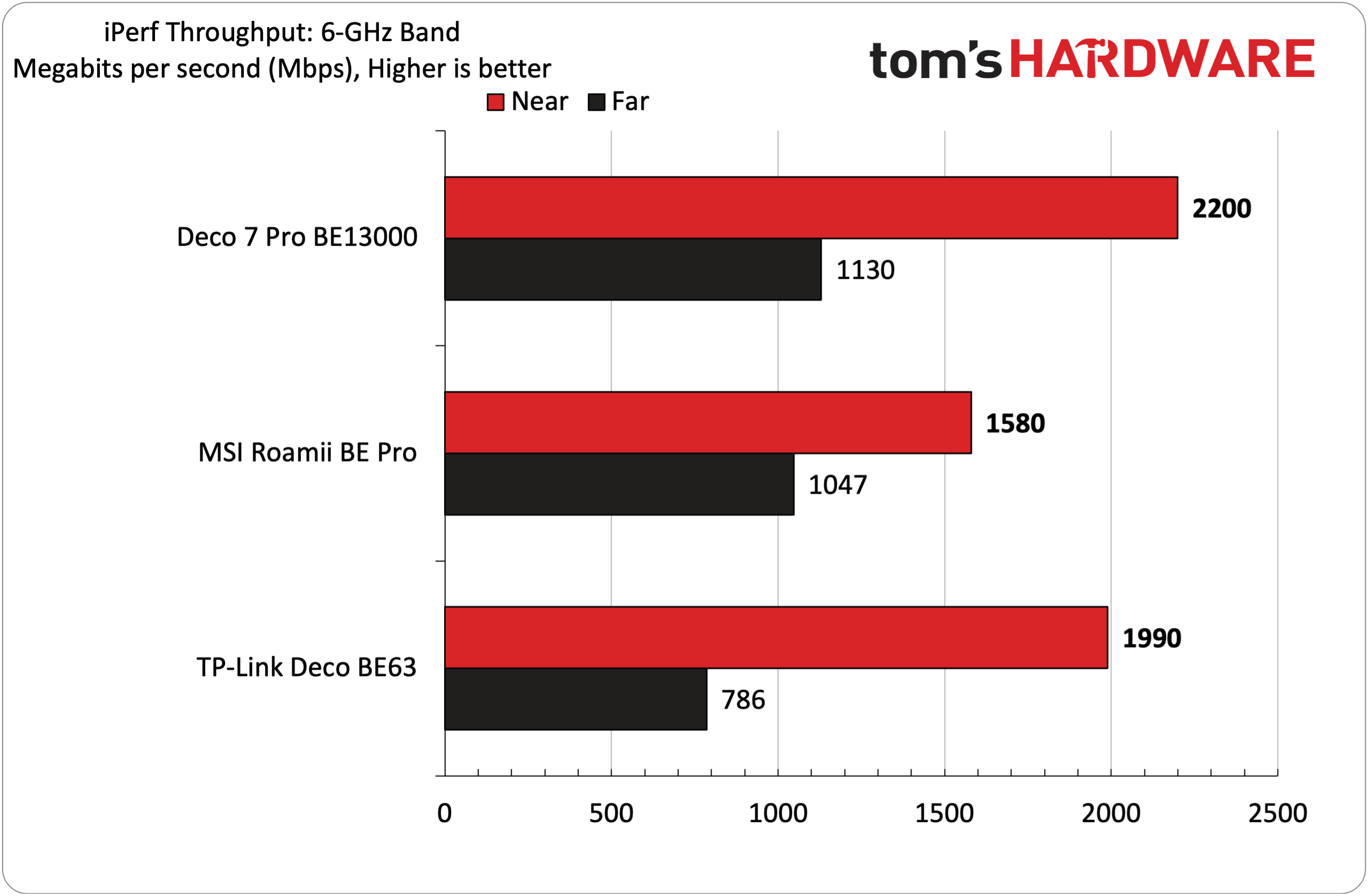
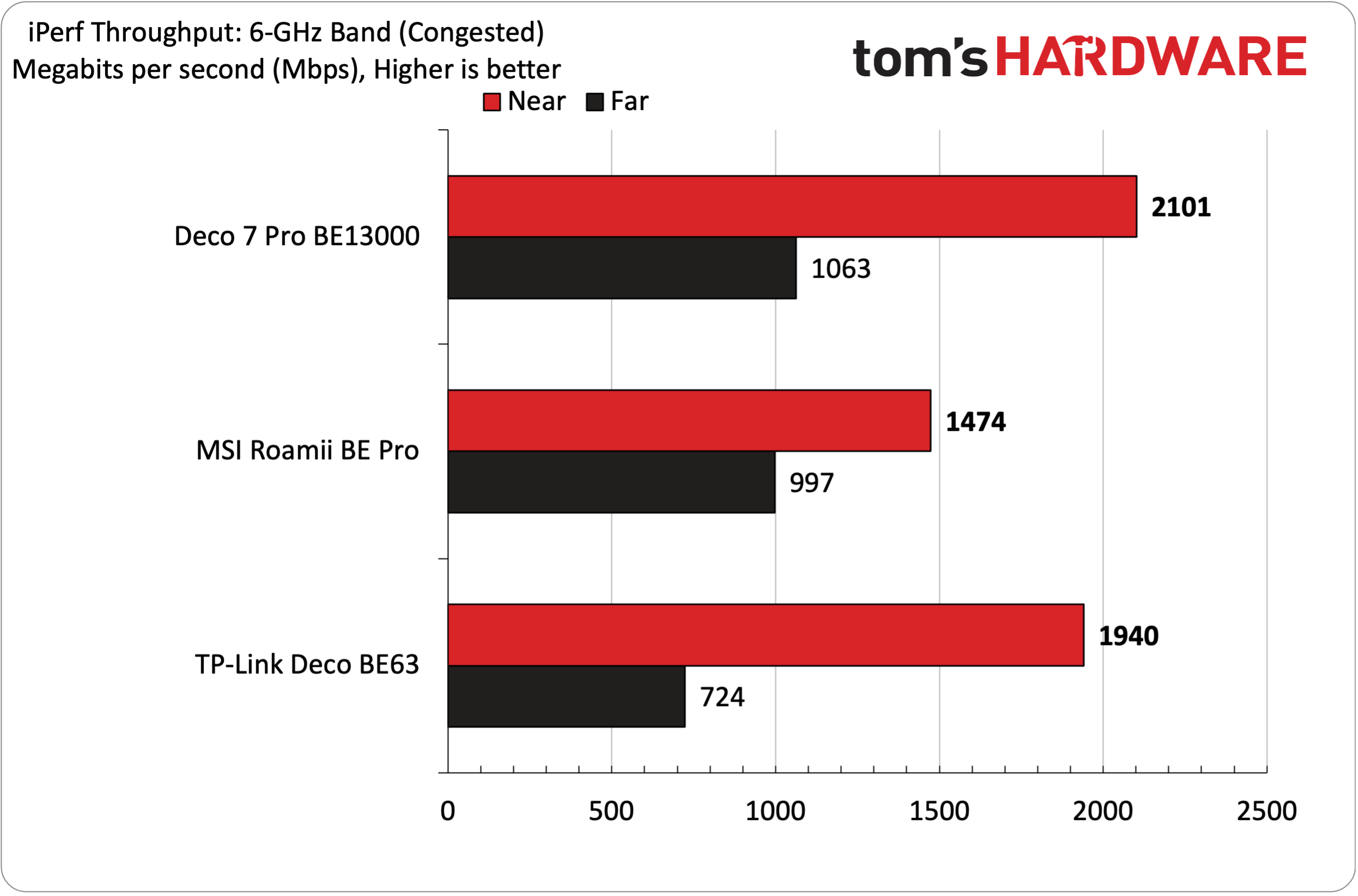
The Deco 7 Pro BE13000 proved to be the best performer on the 6 GHz band in both uncongested and congested testing. The router reached 2,200 Mbps at 6 feet and pulled roughly half that at 25 feet, with no additional traffic on the network. This put it comfortably ahead of the MSI Roamii BE Pro and just ahead of the Deco BE63. It was a similar situation with congested traffic, as the Deco 7 Pro BE13000 was still able to maintain over 2,100 Mbps at close range and nearly 1,100 Mbps at 25 feet.
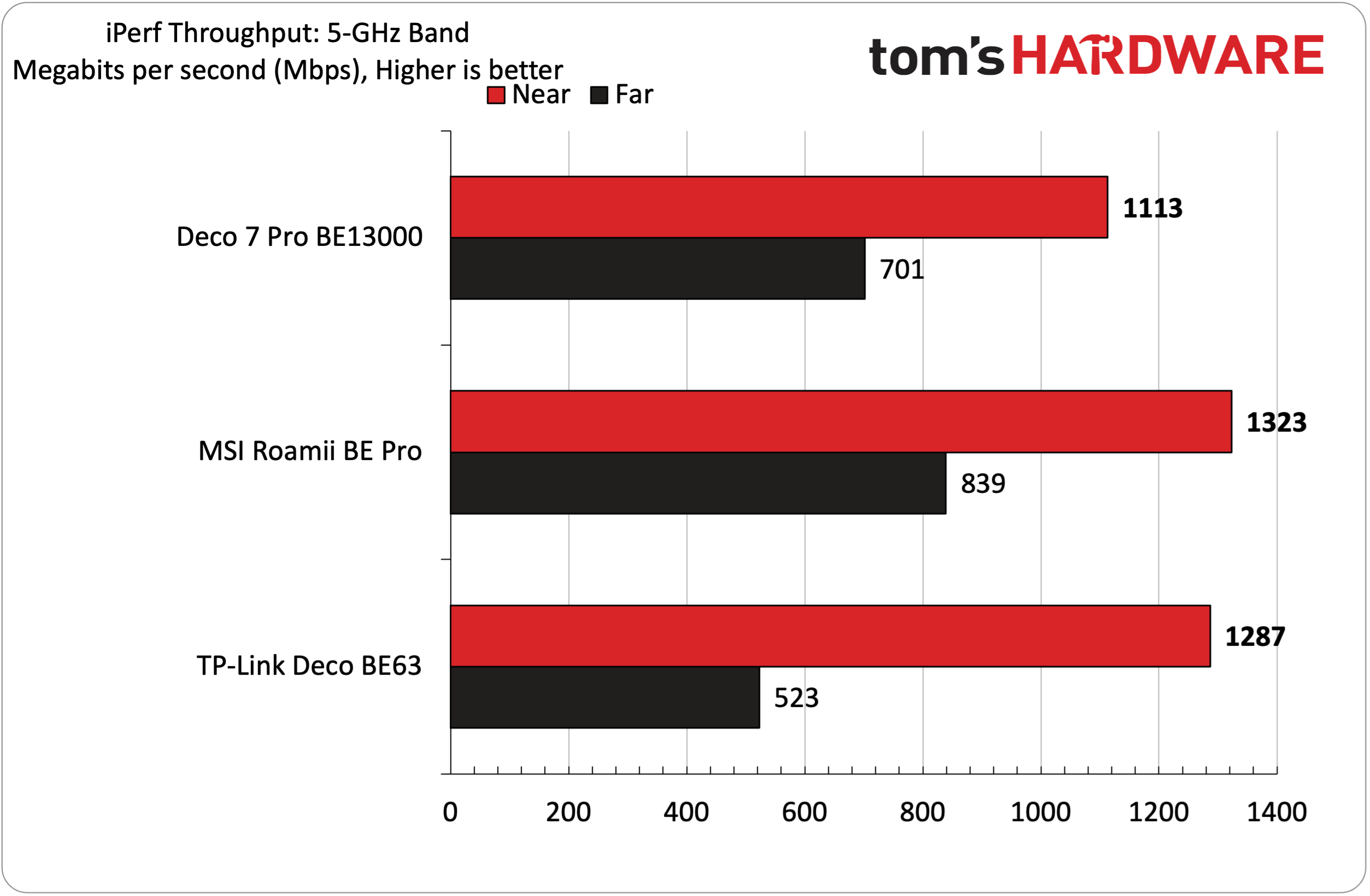
During testing on the 5 GHz band, the Deco 7 Pro BE13000 couldn’t quite keep up with its two rivals. We saw 1,113 Mbps at six feet and 701 Mbps at 25 feet during the uncongested test. That put it in third place at close range and second place at long range. Those rankings held firm with congested traffic, with the Deco 7 Pro BE13000 still pulling over 1,000 Mbps at six feet.
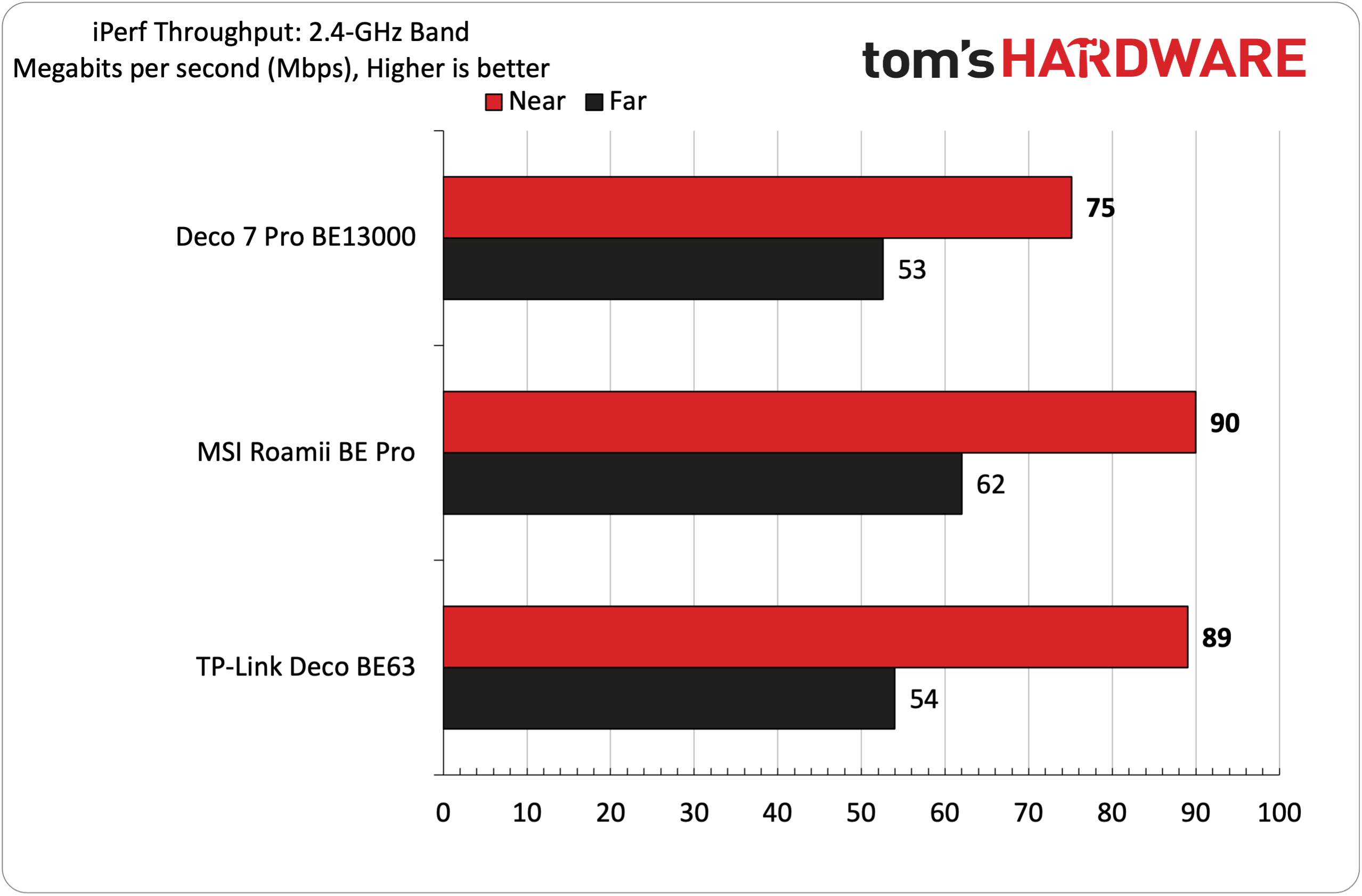
The Deco 7 Pro BE13000 once again found itself in last place during the 2.4 GHz band testing, falling roughly 15 Mbps shy of the Roamii BE Pro and Deco BE63 at close range with uncongested traffic. Things were a bit closer when we moved out to 25 feet, with the Deco 7 Pro BE13000 nearly matching its Deco BE63 sibling (53 Mbps versus 54 Mbps). With increased network traffic, the performance differential between the routers narrowed, although the Deco 7 Pro BE13000 still lagged slightly.
Bottom Line
The Deco 7 Pro BE13000 is a bit of an odd duck in the TP-Link mesh router family. While its 6 GHz performance is commendable and superior to that of the cheaper Deco BE63, it couldn’t quite reach its more affordable rivals on the 5 GHz and 2.4 GHz bands. With that said, the Deco 7 Pro BE13000 is by no means a poor performer – it just isn’t a standout across the board.
A bit more confounding is its port layout. Although it’s higher-positioned than the Deco BE63, it comes with one fewer LAN/WAN port. And while you do gain a 5 GbE LAN/WAN port, what you’re left with is a GbE LAN/WAN and a 2.5 GbE LAN/WAN. At this price point, TP-Link shouldn’t be putting GbE LAN/WAN ports on its mesh routers.
Finally, we come to the subscription services required to enable features such as web protection, intrusion protection, and antivirus. You’re looking at upwards of $129.99/year for the Total Security Package. Other router manufacturers like Asus give you those tools for free, which should definitely factor into the pricing equation for the Deco 7 Pro BE13000.
If the extra security protection isn’t appealing to you (or if the built-in tools are sufficient for your needs), the $399 price tag for three nodes is a good value, especially given the 8,100-square-foot coverage.