Windows 11 wants your trust. Microsoft keeps testing it
Microsoft launched Windows 11 as the most secure Windows ever built—and the marketing was almost convincing at the time. Almost five years later, I can’t say the same. And that’s a problem.
A recent bug in Windows was the final straw. About a week ago, Microsoft confirmed users are mistakenly being alerted that Defender, Windows’ native antivirus protection, has been turned off.
Welcome to Safe Mode, your weekly report for pressing security and privacy news—and what steps to take next. Want this newsletter to come directly to your inbox? Sign up on our website!
On the back of earlier issues this summer with system startup and BitLocker recovery, and the messy process of Secure Boot certificate updates, Microsoft’s fumbles no longer feel like occasional one-offs. Nor are they minor. (Not when you can’t boot your system at all. Or you have a momentary heart attack because BitLocker unexpectedly demands its recovery key.)
Family members have asked me to explain Secure Boot certificates to them and why they weren’t updated automatically. If they run into Defender’s latest woes, I’ll have to explain Microsoft Defender Antivirus to them and field questions on why the error even happened. These conversations aren’t easy because they sit on top of a continual pile.
And that heap of trouble started even before Windows 11’s release. Remember the TPM requirement? Then Microsoft walking back the TPM requirement? Then the restriction on unofficial installations? Then the threatened death of Windows 10? Heck, that stay of execution even got a surprise extension out of nowhere.
I’m not surprised by this chaos—AI truly has changed the game. At a product launch event in late July, several Microsoft representatives said that hackers and other bad actors are ahead of those protecting against attacks. The defenders are playing catch up. Microsoft has increased the frequency and number of security patches for this reason.
But Windows keeps changing and breaking. In the absence of a reliable warning system, people will increasingly make decisions without thinking too deep about what Windows is or isn’t doing. Microsoft is training us to not believe the very systems we’re supposed to put our faith in.
That goes directly against what Windows 11 aims to be. It’s a real pity.
In the news
Analog identity verification is creating headaches in our digital lives—as evidenced by the apparent real-time, continual leaking of scanned driver’s licenses. Meanwhile, secretly malicious browser add-ons and security vulnerabilities continue to crop up.
The only bright spot? Academic researchers may have found a cheap way to scan for hidden creeper cams.
Jared Newman / Foundry
The good:
- Korean and Singaporean researchers have come up with an affordable way to detect hidden cameras. (Think spycams planted in hotel rooms or bathrooms.) The tiny device attaches to your phone camera, costs only $7 to make, and has 94 percent accuracy. Here’s to hoping it becomes produced widely.
The bad:
- Chrome and Edge browser extensions keep hiding malware—this time, cybersecurity firm Socket says it discovered 19 add-ons with code for stealing data and access to crypto wallets. Five started out as legitimate, only to be sold to bad actors. Another reminder to keep your extensions to a minimum, and uninstall any you don’t use.
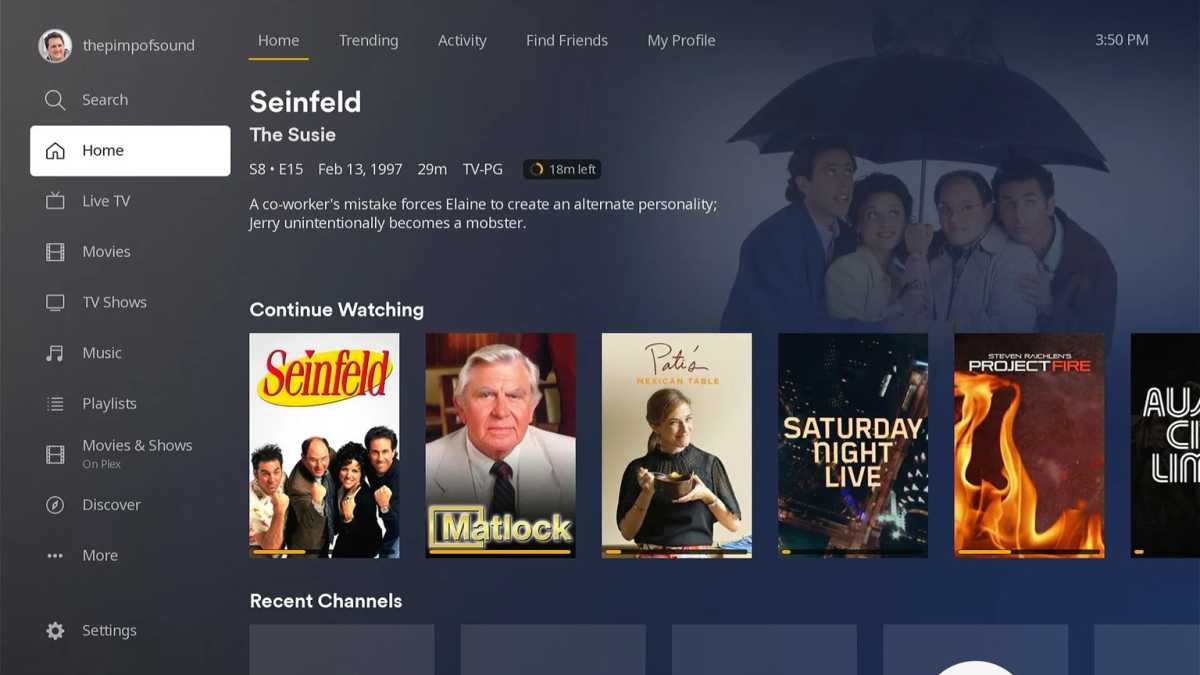
- Plex, the maker of popular media streaming software, issued a warning about security vulnerabilities affecting media server and desktop app users. No further specifics are available, but the advice is straightforward: Update to the latest versions now.
The ugly:
- Images of over 153 million U.S. and Canadian driver’s licenses leaked to the dark web, likely through an ID verification service used by corporations like Hertz, Target, and FedEx. That puts your government photo and handwritten signature in the hands of identity thieves—lock down your credit, banking, and tax info pronto.
Tip of the week
PCWorld
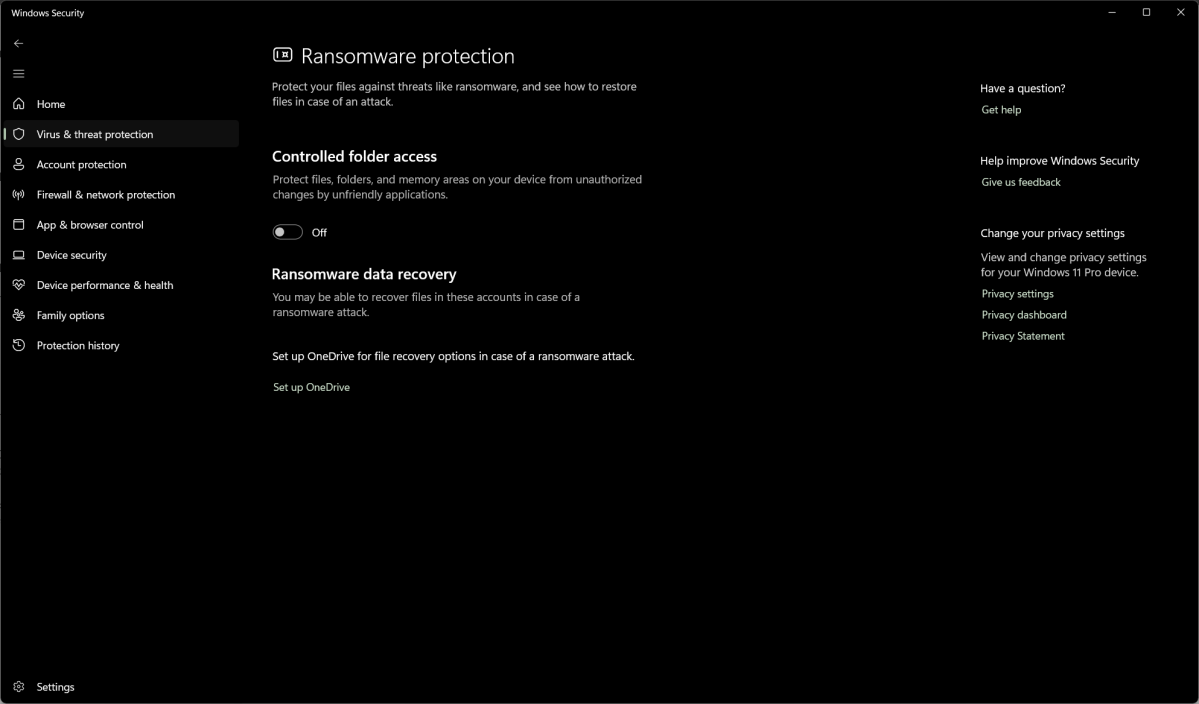
Did you know Windows has built-in ransomware protection? You can turn it on by opening the Windows Security app, heading to Virus & threat protection, and then choosing Manage ransomware protection.
Flipping on the protection restricts apps from going into your OneDrive, Documents, Pictures, Videos, Music, and Favorites folders—that way, you can’t be locked out of them. You can also add other folders manually to the protected list. For a full walkthrough of how Windows’ ransomware safeguards work, check out our guide.