

4 ways to get Windows 11’s newest features sooner — from safe to experimental
A new Windows update does not automatically mean that every user receives the same features on the same day. Microsoft rolls out many new features in stages. Even if a feature is technically already part of the installed version of Windows, it may initially remain disabled on your PC.
There’s a method to this: With phased rollouts, Microsoft can initially deliver new features to a subset of users and monitor whether any issues arise. If errors occur, the rollout can be halted or adjusted before millions of computers are affected. Some new features are also only enabled in specific versions of Windows or in certain regions.
For those who are impatient, there are therefore several ways to speed up the official rollout. The simplest involves going directly to the Windows Update settings. If you want to test the updates even sooner, you can install optional preview updates or join the Windows Insider Program. Finally, with ViveTool, you can even activate hidden settings in Windows to gain access to new features.
It’s important to note that the further you stray from the standard Windows Update process, the greater the risk of errors. For an everyday PC or an important work computer, the most radical method is therefore not always recommended.
Four ways to access new Windows features
How soon do you want to try out new features? Depending on the method you choose, you’ll gain access to new Windows features at different speeds:
- Enable the latest updates: In the Windows Update settings, there’s a toggle that lets you receive new features and updates as early as possible. This is the simplest and safest way.
- Install optional updates: Microsoft releases preview updates towards the end of the month. These often already contain bug fixes and improvements that are later rolled out as standard updates. Installation is carried out manually via Windows Update.
- Use Windows Insider: The Insider Program gives you access to pre-release versions of Windows. For keen users, the Beta Channel is usually the best balance between new features and day-to-day usability. If you prefer maximum stability, choose the Release Preview Channel.
- Enable hidden features with ViveTool: The open-source tool ViveTool can unlock certain features that are already included in Windows but have not yet been activated. However, this requires some experience and a willingness to experiment.
1. Get new features sooner
Foundry
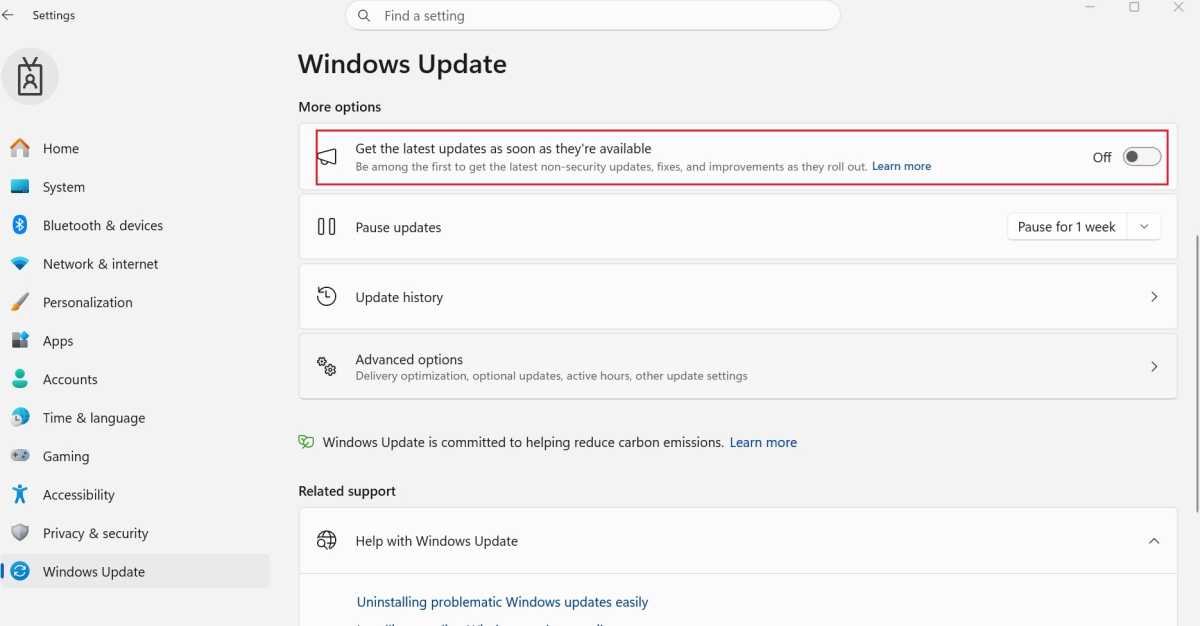
The easiest way to access new Windows features is via an inconspicuous toggle in the update settings. This tells Microsoft that you’d like to receive new features and updates as early as possible.
To do this, open ‘Settings > Windows Update.’ There, enable the option ‘Get the latest updates as soon as they’re available.’ Windows will then continue to check for updates as normal, but will prioritize your device when Microsoft rolls out new features or improvements.
What the toggle does — and doesn’t do
This setting is particularly useful for users who want to try out new features as early as possible without having to install pre-release versions of Windows. You’ll continue to receive security updates regardless.
However, at Microsoft, “immediately” does not necessarily mean that a new feature will appear straight after activation. Many new features are rolled out gradually. Microsoft may initially enable a feature for only some compatible computers and expand its availability later.
So if an announced new feature still doesn’t appear despite the toggle being activated, this isn’t necessarily a fault. In such cases, a little patience often helps — or one of the following methods.
2. Manually install optional updates
Foundry
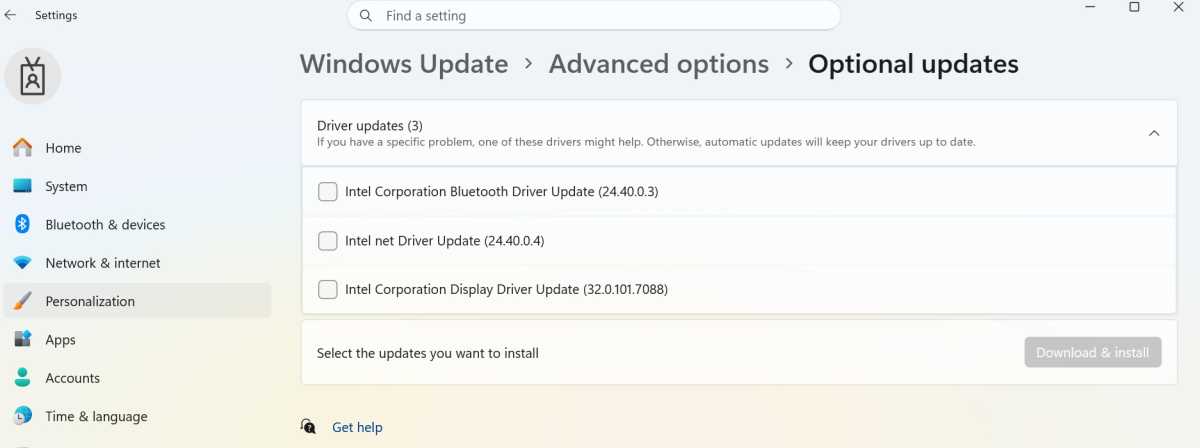
If you’d like to get your hands on new improvements a little earlier, you can take a look at the optional updates. These are often preview versions of upcoming, non-security-related updates. They contain, for example, bug fixes, drivers, or improvements that Microsoft will later roll out to all users via a regular update.
These updates usually appear towards the end of the month and must be installed manually. They are therefore not part of the automatic update service.
How to find the preview updates:
Open ‘Settings > Windows Update > Advanced options > Optional updates.’ If updates are available there, you can select the packages you want and then install them. Depending on the update, relevant offers may also appear directly on the Windows Update homepage.
The optional quality updates can be particularly interesting. They sometimes already contain improvements that will only be automatically installed on your computer on the next regular patch day. If you want to fix specific bugs or try out new improvements earlier, you can often access them here in advance.
Please note, however, that an optional update is not automatically a major feature update. Nor does it necessarily include every new Windows feature. Whether a new feature is already included and enabled for your device also depends on the specific rollout.
For users keen to experiment, however, this method offers a sensible middle ground: You stick with a standard and generally stable version of Windows, but get certain improvements slightly earlier than others.
3. Windows Insider: Test new features much sooner
Foundry
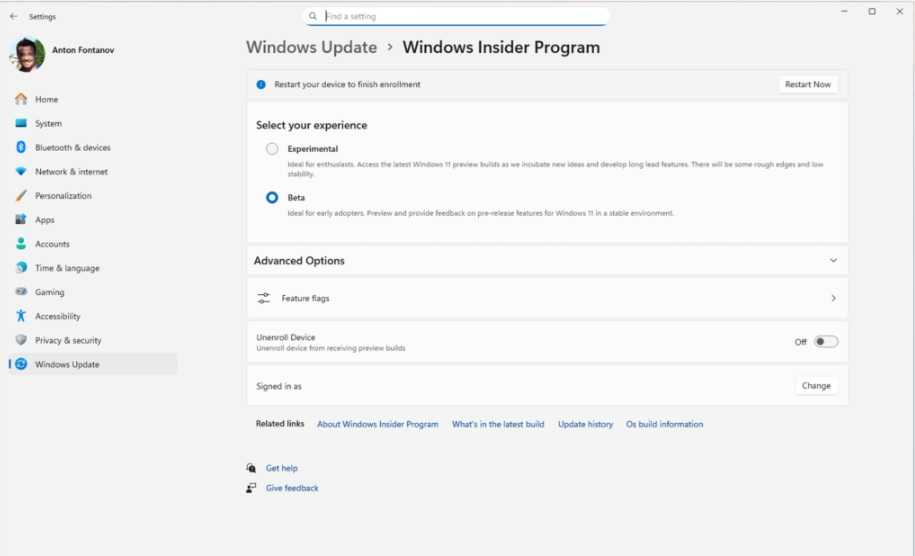
If you find the standard Windows updates aren’t quick enough, you can get a head start yourself: through the Windows Insider Program, Microsoft provides preview versions of Windows that may already include new features and changes before they are officially released.
Participation in the Insider Program is free and can be enabled directly within Windows. Open ‘Settings > Windows Update > Windows Insider Program’ and follow the instructions. Then select your preferred channel.
Which Insider channel is the right one?
Microsoft divides the Insider Program into four channels. They differ primarily in how early — and therefore how experimental — the Windows versions they contain are.
Release Preview: This channel is closest to the next final version of Windows. New updates usually appear here shortly before general release. It is suitable for users who want to try out upcoming features early on, while taking as few risks as possible.
Beta: The Beta channel offers the best middle ground for many users. New features are often made available here much earlier than in the Release Preview channel, but the builds are generally considered to be significantly more stable than those in the Dev or Canary channels. Ideal for anyone who wants to test new Windows features whilst still being able to use their PC reliably in everyday life.
Dev: This channel is aimed at users who want to try out new Windows developments at a very early stage. However, the features included are often still at an early stage of development and may change significantly or even be dropped before release. Important: Switching back may require a fresh installation of Windows.
Canary: This is where Microsoft is most keen to experiment. The builds may contain very early innovations that are still a long way from being intended for general release. This channel is therefore not well suited for a PC used for important work or day-to-day tasks. Here too, switching back may require a fresh installation, depending on the build.
Our recommendation: If you want to try out new features as early as possible but still use your PC productively, the Beta channel is the best choice. If, on the other hand, your main priority is to test upcoming features in advance with as little risk as possible, stay on the Release Preview Channel.
| Channel | New features | Stability | Suitable for |
| Release Preview | Shortly before the official rollout | ★★★★☆ | Users who want to test new features early on, whilst ensuring they are as stable as possible |
| Beta | Well ahead of the official rollout | ★★★☆☆ | Ambitious users and curious everyday users |
| Dev | Very early | ★★☆☆☆ | Testers and Windows enthusiasts |
| Canary | The earliest | ★☆☆☆☆ | Developers and power users keen to experiment |
⚠️ Important: Insider builds are pre-release versions and may contain bugs, compatibility issues, or changes to functionality. You should therefore back up your important data before joining. You should be particularly careful with Dev and Canary: Depending on the build, switching back to a regular version of Windows may not be possible via the settings and may require a complete reinstallation!
4. ViveTool: Unlock hidden features
Don’t want to wait for Microsoft to enable a feature on your PC? That’s where ViveTool comes in. This free, open-source program can activate hidden feature toggles in Windows, thereby unlocking certain functions that are already present in the system but haven’t yet been made available to all users.
However, this approach does require a certain level of technical understanding. Many features are hidden for a reason: They may still be unfinished, could change at any time, or might cause unexpected errors.
ViveTool works with what are known as Feature IDs. These switches can be selectively enabled or disabled via the command line. Which IDs are relevant for a particular version of Windows depends on the specific build and the function in question.
Important: Do not randomly activate Feature IDs found on the internet. An incompatible or as yet unfinished feature may lead to error messages, crashes or other problems. You should therefore create at least one system restore point and back up important data before experimenting.
ViveTool explained in detail: In our guide, we explain which commands you need, exactly how the tool works, and what you absolutely must bear in mind when using it.
ViveTool is the most powerful, but also the most demanding method when it comes to gaining early access to features. For most users, the options provided by Windows itself are sufficient.
Conclusion: Test new features earlier
For most users interested in new Windows features, the toggle in Windows Update is sufficient. Those who wish to test them even earlier can use optional updates or the Insider Program. ViveTool, on the other hand, is intended for experienced users who want to experiment specifically with hidden features.
Please note, however: The more experimental the method, the more important it is to make a backup. You should therefore back up important data before experimenting with Insider builds or ViveTool.
Related content
- 5 reasons you should become a Windows Insider (and 5 you shouldn’t)
- Windows survival skills: 8 things every PC user should know how to do
- I used to dread Windows updates. Then I took control of them