I turned off most Windows notifications, and I’m not going back
I hate notifications.
Well, maybe not notifications themselves, but what they implicitly represent: pieces of information or action that you need to act on or react to right now. I find them distracting and a real productivity killer, and I don’t think I’m alone here. This UC Irvine productivity paper shows that workers bounce around between different “spheres” of work (especially in the morning), and that it can take up to a whopping 23 minutes to return to an earlier flow state if you’re distracted.
So, how do we minimize these distractions and stay focused? Let’s talk about managing (or even eliminating) notifications on your Windows PC.
Welcome to PCWorld’s newsletter, Smart Mode! The focus of this newsletter is productivity: from software to hardware to peripherals, all with the idea to get what you need to get done, efficiently.
I’m your host, Mark Hachman, covering the productivity tips, tools, and trends that you need to know about, both from within PCWorld and beyond. If you want the latest issue in your inbox each week, just sign up right here.
Do Not Disturb (me ever)
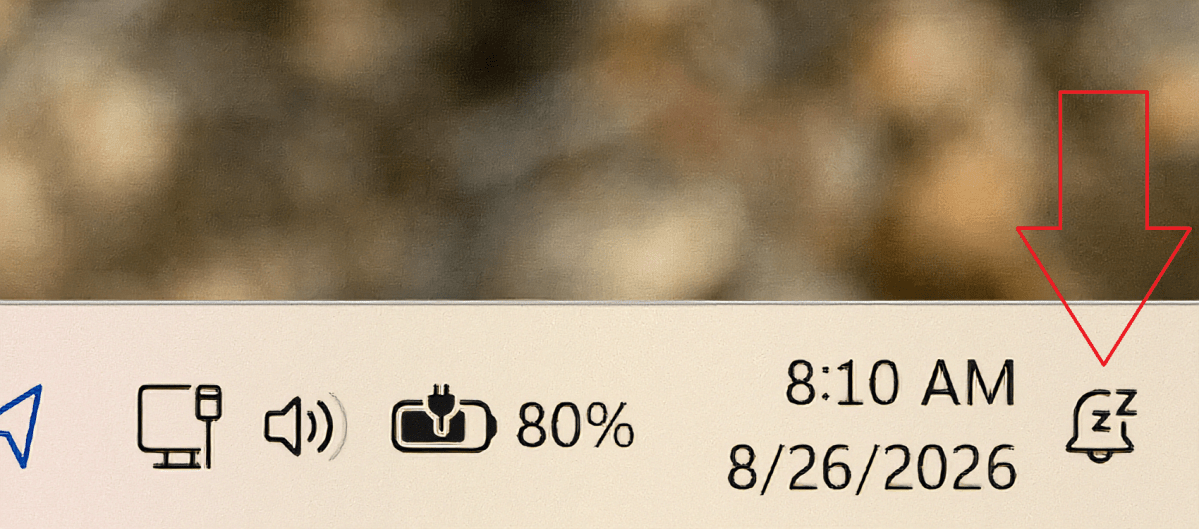
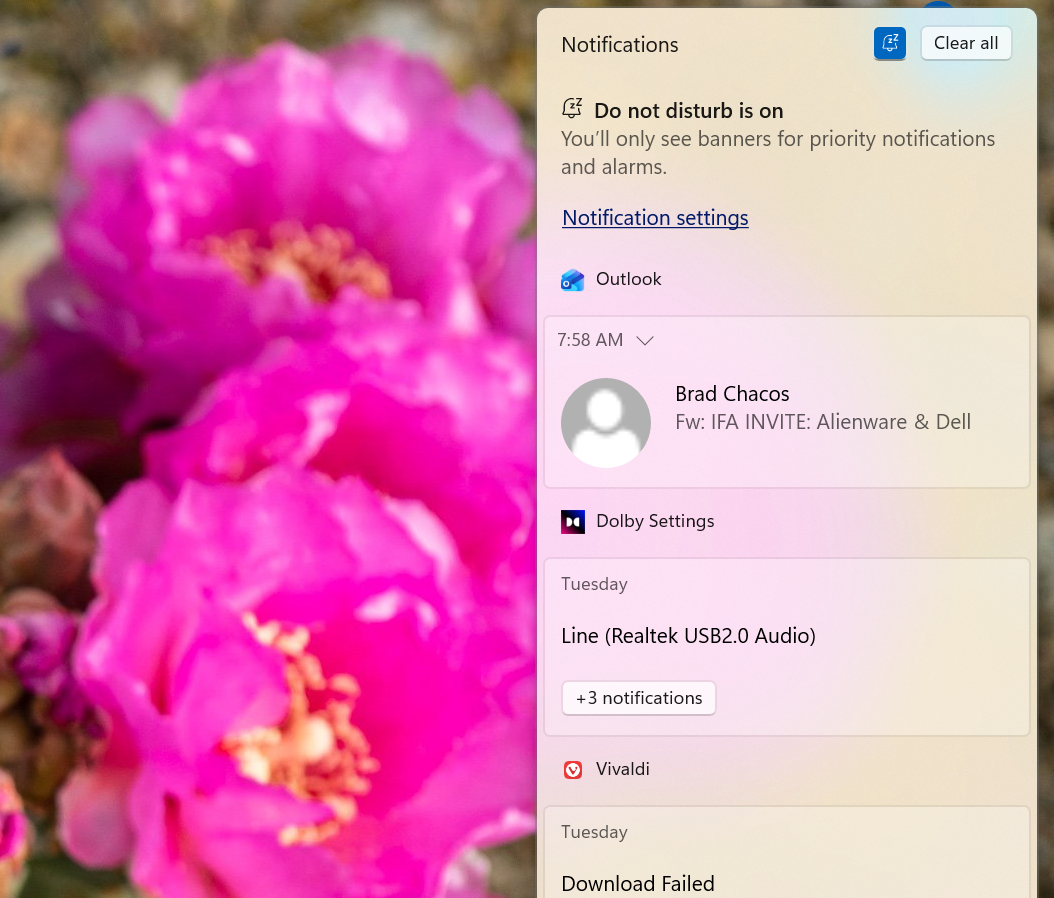
Traditionally, Windows handled this via Do Not Disturb, the teeny little “bell” icon way down in the lower-right-hand corner of the Action Center. Click it (if it’s not already on) and you’ll turn on the feature. A few little “Z’s” visually demonstrate that your notifications are sleeping.
Snoozing your notifications still lets them in; they’ll stack up for future review in a vertical column along the right side of your monitor whenever you open the Action Center. And snoozing your notifications still permits “priority” notifications, including alarms, to trigger. Do Not Disturb is also a feature of Focus Time, part of the Windows updated Clock application. Focus Time assumes that you simply don’t want to be disturbed by extraneous notifications in brief, half-hour periods where you want to jam on a task and complete it.
Mark Hachman / Foundry
I think that’s nuts. Why wouldn’t you want your life completely free of such distractions? Windows already sends you the most inane updates: the results of malware scans, “this day in” Microsoft Photos, a note that it snapped a screenshot using the Snipping Tool. And that’s before all of the third-party content: social media, app updates and promotions, and so on.
At the very least, I’m now convinced that you should leave Do Not Disturb on, perpetually. And I’d like to conclude by proposing a more radical change altogether: Start entirely disabling notifications for most apps.
Managing notifications begins in Settings
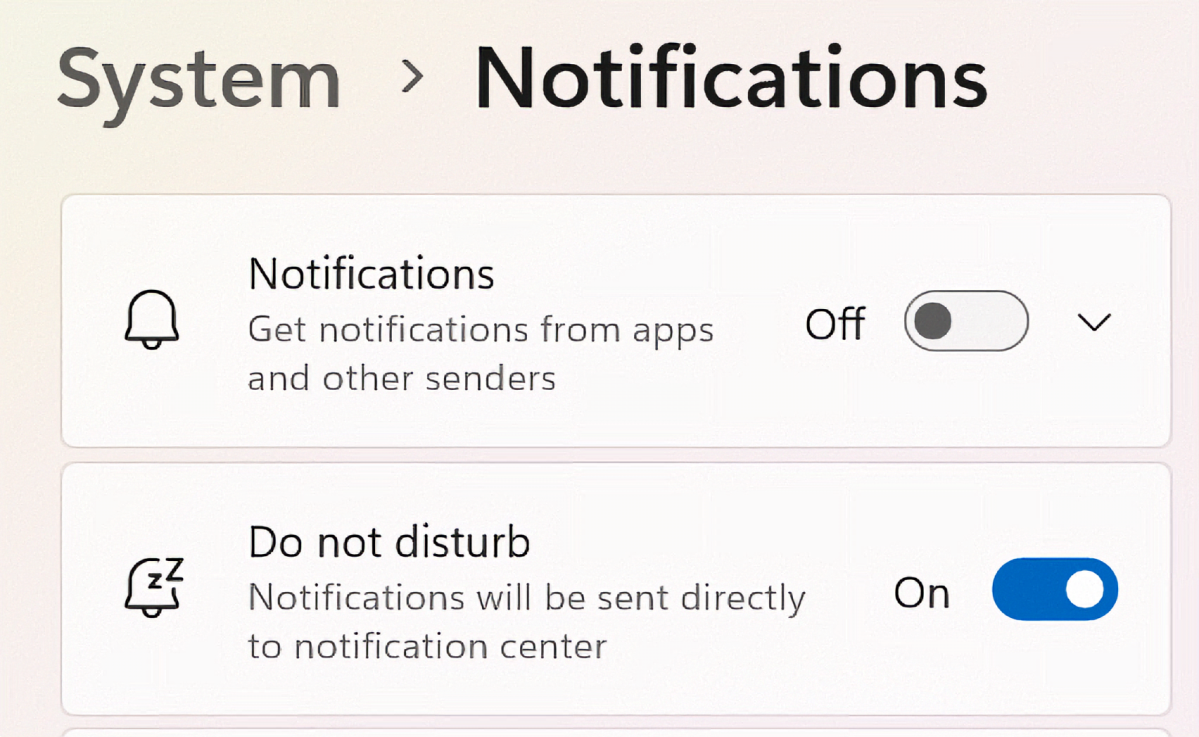
Control over your notifications lives in two places inside your Windows Settings menu. The first, Privacy & Security > Notifications, looks intriguingly like it might do something useful, but it really doesn’t. A second set of controls, System> Notifications, is where you can begin taking action.
Mark Hachman / Foundry
At the top is a master control switch: you can toggle notifications on or off, in their entirety. I’m not there yet, for one big reason I’ll explain below. Still, I think you should take an aggressive stance toward some of these settings, using the drop-down caret menus to fine-tune your choices.
Let’s begin at the bottom of the page, where your choices will have the most impact.
For each app running on your machine, you’ll have an option to turn off notifications entirely. (In the screenshot below, you’ll see that Windows has organized the apps by frequency, with the most recent at the top.) More importantly, each app has its own separate sub-page, with the same basic controls. Here’s the notification page for the Windows Snipping Tool in the default configuration:
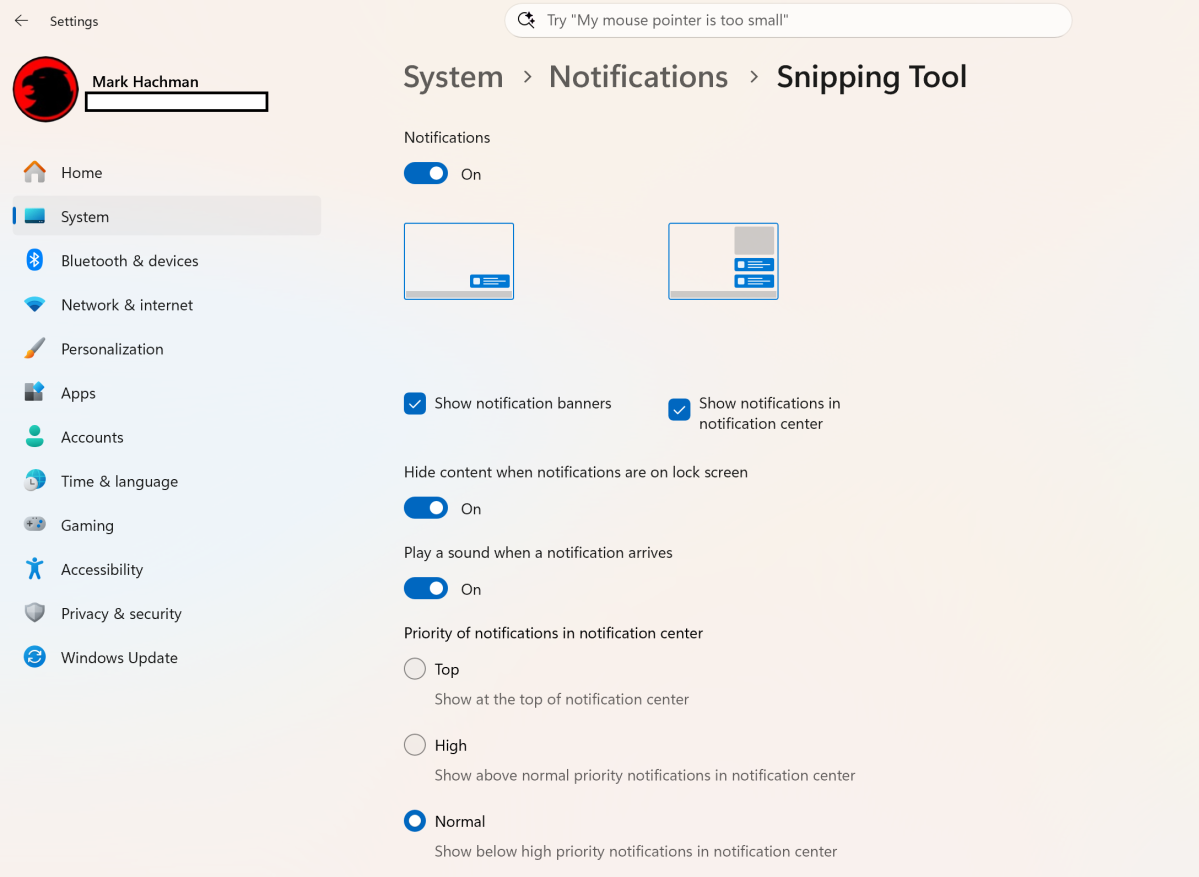
In the example above, you have two major options: leave the banner as it is (“Show notification banners”) or banish it to the notification center (“Show notifications in notification center”). I’d uncheck the first, but recommend keeping the latter checked for now. The notifications center is basically your Windows spam folder, keeping notifications out of sight.
(Do you really need Windows to tell you that you’ve taken a screen snip? You do not. Likewise, you don’t need Windows to alert you to a new version of Solitaire or to a new app for Adobe.)
I tend to work up from the bottom of the list of applications, more aggressively removing notifications entirely (bye, Dropbox promotion) or at least banishing them to the notification center as I start working my way to the top. You might want to allow your laptop’s utility software to send you an alert if a fault is detected… or not! Your call.
Conversely, the Notifications settings menu allows you to set “priority” notifications or the ability to let all notifications generated by a particular app go through.
The thing that drives me nuts is that Windows treats all applications equally here, which absolutely shouldn’t be the case. It also treats Outlook as one app, when Outlook contains two major discrete functions: your calendar and email. Windows treats them the same… with no indication that separate controls exist. They do! Well, to some extent, and only within the Outlook app.
Inside the Outlook app, go into Settings, then General > Notifications. You’ll see options to set your email notifications as “Desktop,” meaning a standard desktop notification or “None.” Alternatively, you can also choose to highlight email from “favorite” contacts, showing a notification and even playing a special sound when an email arrives.
(To set a contact as a favorite, hover your mouse cursor over the person sending you the email, go down to the three-dot menu, then add them as a favorite contact.)
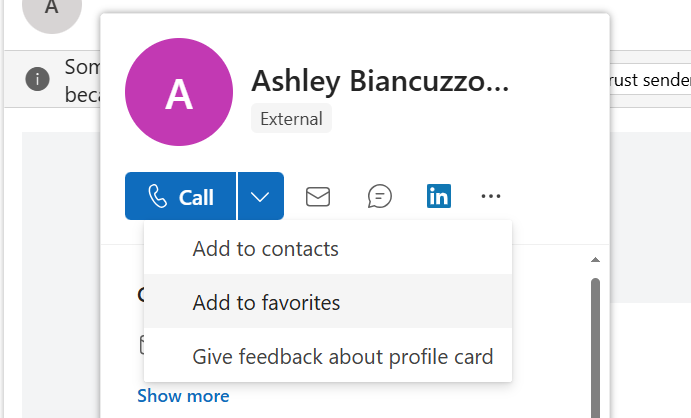
If you use Outlook’s Focused Inbox, which dates back nearly a decade at this point, I’ve found that it tends to default to only showing those emails as notifications, which tends to be a nice compromise between a constant barrage of inbox-related notifications and none at all.
Honestly, Outlook is the reason I haven’t killed my Windows notifications entirely. Email can sometimes wait, but I don’t want to inconvenience anyone I’ve agreed to meet with.
Notifications (in general) are yesterday’s tech
As I said, though, I tend to try and kill as many notifications as I can. Why? Because notifications are an anachronism.
In 2010 or so, a 1080p display was pretty cutting-edge for desktops. Many laptops still use 1080p panels. But you simply can’t represent a full screen of email, a web browser, PowerPoint, and a chat app on a single 1080p screen. That’s why ALT+TAB and virtual desktops and notifications came into being: to alert users to some piece of information that they couldn’t see offscreen.
Now multiple monitors aren’t just a possibility; they’re a reality. They’re cheaper than ever and your home office should include more than one. Plus, with more physical screens, the need for notifications diminishes.
Here’s the thing. Imagine yourself driving down the street. Good drivers are taught to keep their eyes moving and to be aware of what’s around them, but mostly what you see is of no immediate consequence. Parked cars, someone walking their dog, a squirrel.
A notification swings in like a child running out into the road. Something moving in from your peripheral vision triggers that “ALERT!” response, where we’re compelled to ensure that whatever it is isn’t a threat or a danger. That’s why Tom down the street doesn’t get to put lights and sirens on his Dodge Ram — those are reserved for true emergencies.
I maintain multiple displays with multiple apps on each one. One is dedicated entirely to peripheral information: my email, chat, and RSS feeds. Another is my “focus” screen, largely dominated by multiple tabs on a web browser, where I can move back and forth. A third screen is basically reserved for additional information — a PDF or presentation, perhaps, or my notes. I minimize notifications as much as possible, but these screens silently update with new information.
You will notice that information eventually. When your mind drifts away from the task at hand, it will drift to the side, where email and chat are located. If you want, you can even “mute” that information by minimizing those windows.
That brings me to my final point. Information that needs to find you will find you. It’ll usually arrive as a tap on the shoulder, a direct message, a high-priority email, or a phone call. Some might argue that notifications are necessary in fast-paced workplaces. Maybe that’s true. A 911 dispatcher doesn’t want to ignore their calls, after all.
In most workplaces, though, outthinking your competitors is often a matter of strategy, not chasing every little distraction. Focus matters.
Productivity in the news
- My colleague Sam Singleton has some advice about using some of Gmail’s lesser-known tools to manage your email effectively.
- Is it a little odd that we’ve now had two reinventions of the ALT+TAB command in a couple of weeks?
- If you’re going to talk about productivity, it’s important to keep using new devices. One depressing trend: budget machines at not so budget prices, like the Acer Swift Go 16 AI. I liked it, but at the price?
- AI transcription is a valuable tool (I’m still hooked on Otter, but my company uses Fireflies as well.) But the future isn’t paid subscriptions, but local AI models. Ashley Biancuzzo tries out the Flowtica Scribe and discovers an unexpected consequence: stage fright.
- Many consider the Logitech MX Master 4 to be the king of productivity mice, but can it serve both during the workday as well as in an after-hours gaming session?
Productivity tip of the week:
In reviewing recent advice in the productivity sphere, I came across some “research-backed tips,” including this one (without any research citation, incidentally): “Never attend or run meetings without clear agendas and desired outcomes.”
This part is important, too: “Effective meetings have specific start times, end times, and action items.”
We could all agree that a productive meeting has clear, actionable goals, but actually turning down a meeting because its goals aren’t set in the agenda? That takes some guts! And a pretty secure position, probably.
Thanks for reading!
Thanks for tuning in to this edition of Smart Mode, PCWorld’s newsletter devoted to helping you make the most of your life, smartly. Sign up and have it sent to your inbox every Thursday!