
Keep hackers out of your WhatsApp account with these 3 steps
WhatsApp may be encrypted, but its security is only as good as yours. If you have a lax attitude about how you lock down your account, its protections won’t keep hackers out. (Watch out for sneaky QR codes!)
Recently, WhatsApp bumped up two key security features, passkeys and two-factor authentication. Haven’t begun using them yet? Now’s the perfect time—and you should consider at least one other smart move, too.
Set up multiple passkeys
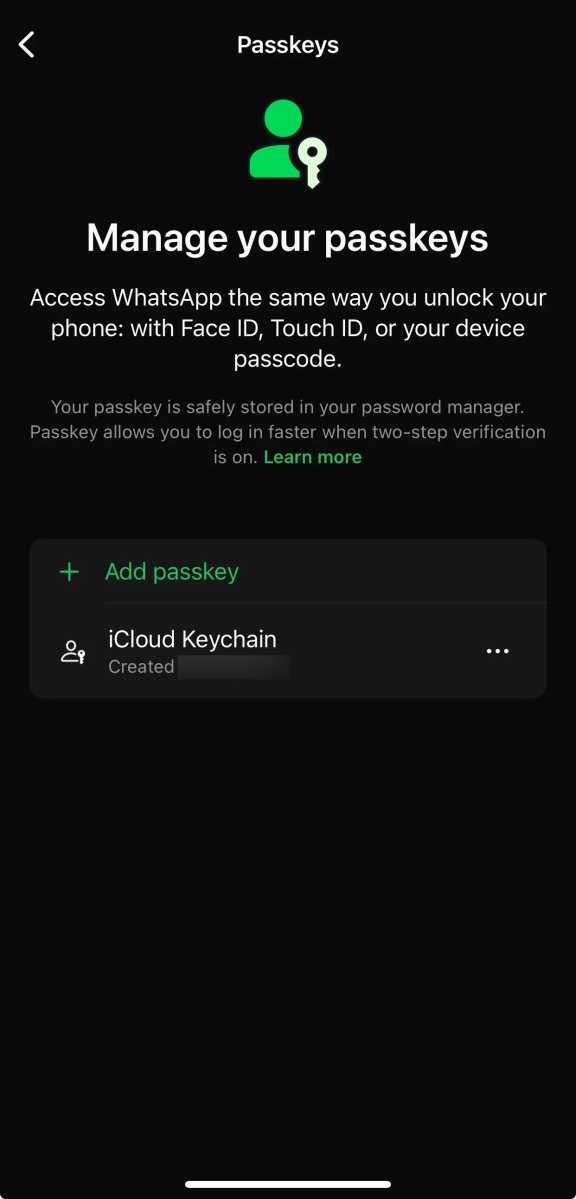
The WhatsApp settings screen for passkey management.
PCWorld
Passkeys can’t be stolen, duplicated, or cracked, which is why they’re superior to passwords or PINs when implemented correctly. So they’re resistant to the kinds of social engineering attacks commonly used to hijack WhatsApp accounts.
WhatsApp has now expanded its passkey support to allow multiple per account if you own both Android and iOS devices. One device must be on Android, the other on iOS. It’s worth doing, just in case something happens to the main device you use. Having a backup passkey lets you back in instantly, with zero hassle.
Create your passkeys by heading to Settings > Account > Passkeys.
Set up two-factor authentication
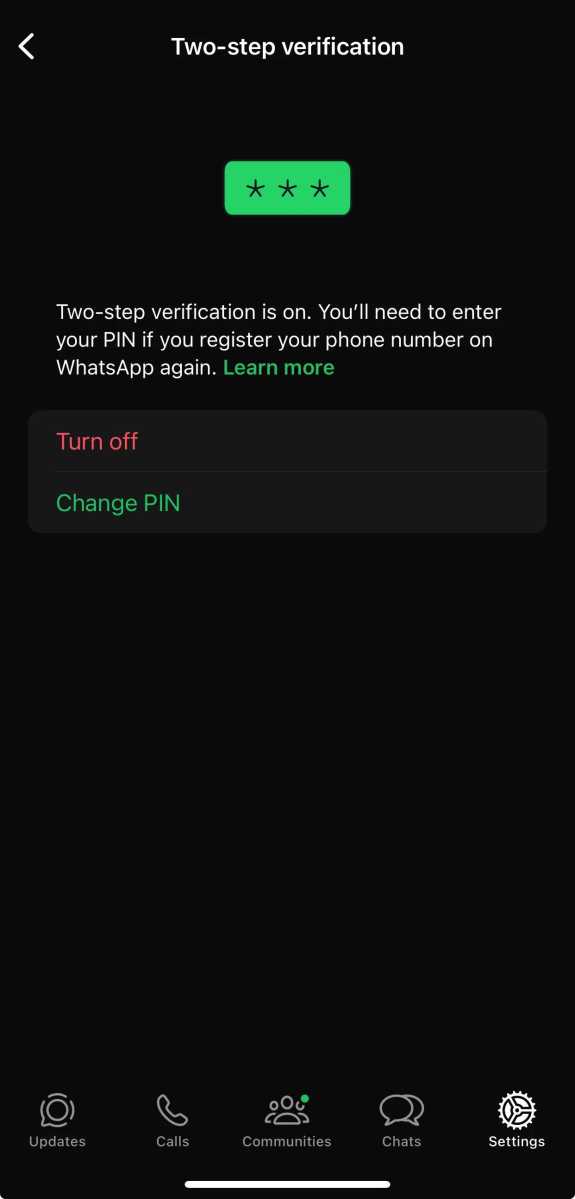
The WhatsApp two-factor authentication settings screen after activation.
PCWorld
WhatsApp doesn’t use a traditional password login, but its new upgrade to its two-factor authentication system feels close.
Previously, you could safeguard your account by creating a six-digit PIN—even if someone tried add a linked device (or just outright take over), that numeric string was needed to see chats and other content or finish logging in.
Now WhatsApp requires a full password (mix of letters and numbers, with special characters also supported). Existing PIN users can upgrade to a password.
As much as of a pain as a full password sounds, don’t sleep on this feature. It may be what stands between a well-timed phishing or social engineering attack and your account.
Activate two-factor authentication by navigating to Settings > Account > Two-Step Verification.
Set up encrypted backups
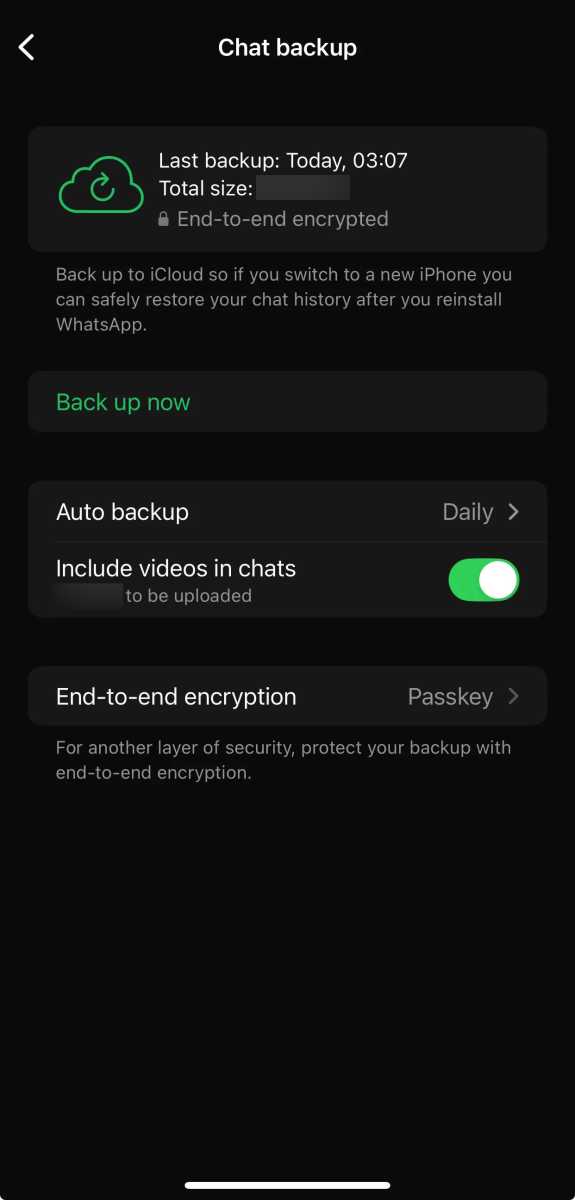
The Chat Backup settings screen in WhatsApp, after setup (including end-to-end encryption).
PCWorld
WhatsApp doesn’t have cloud storage for your chat history, which is a great privacy advantage. But this system also can be disastrous.
You’ll lose everything if you just don’t back up your chats, obviously. But backing up without encrypting that data also is dangerous. If the service where you save everything is compromised, hackers could then sift your messages, images, and videos. At best, that gives them ammunition to better scam you.
To keep people out of your business, turn on encrypted backups. You can protect them with a passkey, which eliminates any memorization. Super easy.
Get started with encrypted backups by going to Settings > Chat > Chat Backup > End-to-End Encryption.
Bonus: Lock the app (and your chats)
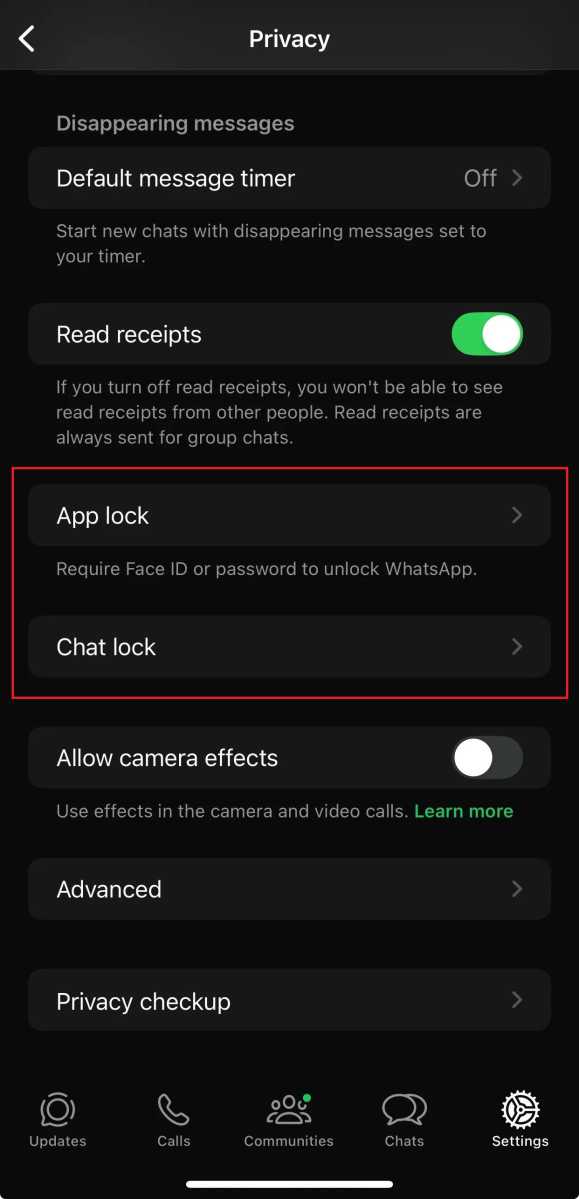
The App Lock and Chat Lock settings within the WhatsApp Privacy settings screen.
PCWorld
Got sensitive conversations within WhatsApp? Keep nosy friends and family out of them by locking individual chats, the whole app, or both with your phone’s biometric lock.
This step blocks anyone using your phone to nose around in WhatsApp. Usually I recommend just the whole app for simplicity’s sake, but you can opt to instead do individual chats only. Or both at the same time.
One warning: If you lock individual chats and want to unlock them later, you will clear the chat history. (This is why I advise just locking the whole app only, in case your privacy needs fluctuate.)
To lock things down, go to Settings > Privacy, then choose either App Lock or Chat Lock.