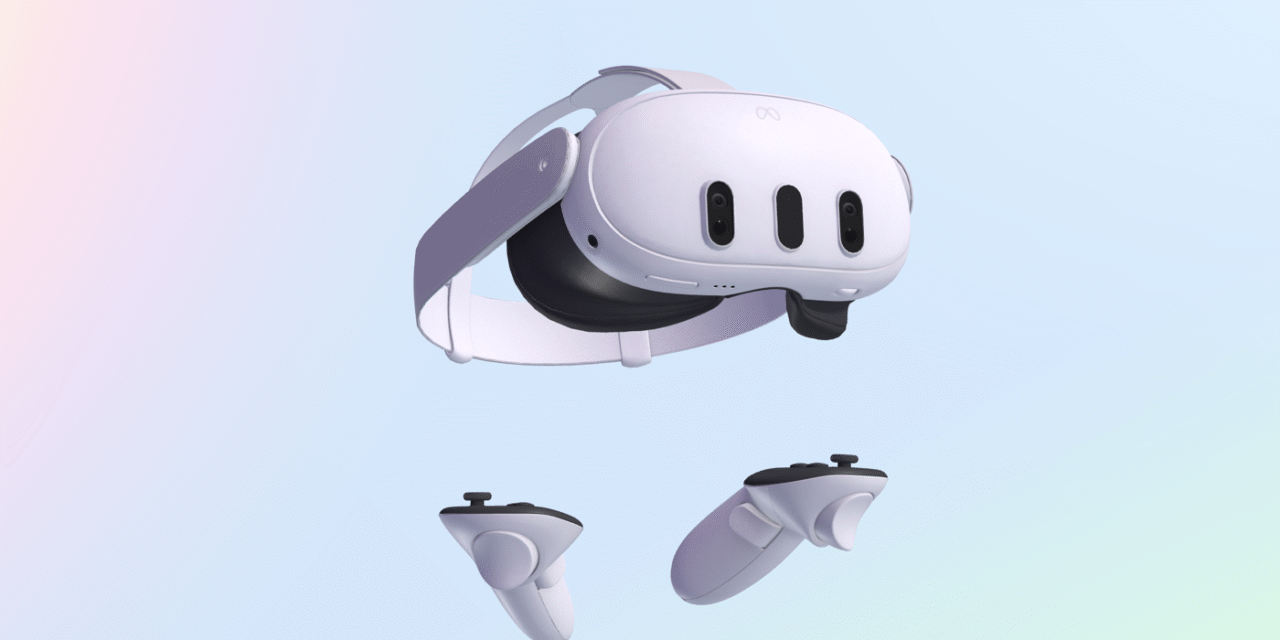
The Quest v81 update is now rolling out, and it changes how the headset feels the moment you put it on. Immersive Home replaces the legacy VR home environments with a higher-fidelity space powered by the Horizon Engine. You can anchor 2D windows so they stay where you place them, both in passthrough and in Immersive Home. On Quest 3 and 3S, QuickPlay lets you jump into Horizon Store apps before the full download finishes, so you play sooner and finish the rest in the background.
Why the “Quest v81 update” matters
Home is where every session starts, so a visual and interaction upgrade touches everything. Free movement around the new Immersive Home makes the space feel like part of the OS, not just a backdrop. Window anchoring turns Home into a real workstation: park your browser or chat in fixed spots and they’ll be there after a reboot. QuickPlay reduces the time from buy to play, which is when most players decide whether to stick with a title. These small wins add up to a headset that feels faster and more personal.
Immersive Home: what changes when you boot
Legacy Home scenes are gone. In their place is a single, high-quality environment with selectable backdrops. Lighting shifts with your choice, and you can teleport or slide around instead of hopping between fixed points. The system centralizes locomotion settings so movement stays consistent. It also brings small touches, like native “objects” you can enable on the walls, to make Home feel alive rather than static.
Window anchoring: pin, return, repeat
Anchoring lets you pin windows to exact positions in both passthrough and Immersive Home. Set a trio of essentials—browser, messages, or a notes app—and they’ll persist between sessions. When you return from a game or world, your setup is waiting. In Immersive Home, windows snap to virtual walls, which makes layouts neat and repeatable. The result is simple: less fiddling, more flow.
QuickPlay on Quest 3/3S: play while it downloads
QuickPlay starts rolling out with v81 for Quest 3 and 3S. You can launch supported apps before the full download is complete, with the system prioritizing the right assets so the opening minutes run smoothly. For players, that can cut the wait roughly in half. For developers, it means fewer drop-offs at checkout because users hit gameplay faster and decide based on the experience, not the progress bar.
Other improvements worth noting
PC VR titles added via Quest Link now show up in your Library and launch straight into the game, skipping older layers. The Horizon Feed gets a cleaner layout for friends, Worlds, and app suggestions. A new Worlds Safety System nudges you to confirm or create a safe boundary before you dive into a fresh space. Some UI experiments continue under the hood, but the default navigation remains familiar so new users are not lost on day one.
Rollout, timing, and how to get it faster
Meta updates arrive in waves, so your headset may not get v81 on day one. Keep the device on and charging with Wi-Fi connected to catch the update when your batch arrives. If you are eager, check Settings → System → Software Update and restart once. Features like QuickPlay and certain UI elements may also roll out separately even after the core update lands; that is normal for Quest OS.
Bottom line
The Quest v81 update is a quality-of-life release that you feel every session. Immersive Home looks better and moves better, window anchoring keeps your tools in place, and QuickPlay cuts the delay between buying and playing. If you use Quest daily—for work, fitness, or games—v81 makes the headset feel more immediate and more yours.