
The next time someone asks for PC help, don’t explain it—show them!
“Hey, can you show me how to do this?”
It’s the simplest of questions. In person, it’s the simplest of tasks. If you have the time and tools, you can demonstrate what needs to be done. But trying to show a colleague or friend on the other side of the country how to perform a task on their computer can be a little overwhelming. Sometimes things can get lost in translation. That’s why certain situations demand specific tools. I’ll show you what you should use below.
In fact, you probably already know the simplest way of helping someone through a task better than I do.
Welcome to PCWorld’s newsletter, Smart Mode! The focus of this newsletter is productivity: from software to hardware to peripherals, all with the idea to get what you need to get done, efficiently.
I’m your host, Mark Hachman, covering the productivity tips, tools, and trends that you need to know about, both from within PCWorld and beyond. If you want the latest issue in your inbox each week, just sign up right here.
We’ll do it live!
As a rule, my colleagues in tech media write stories and craft videos, all making a point. Everything we do is asymmetrical. We create it now. You read or watch it later.
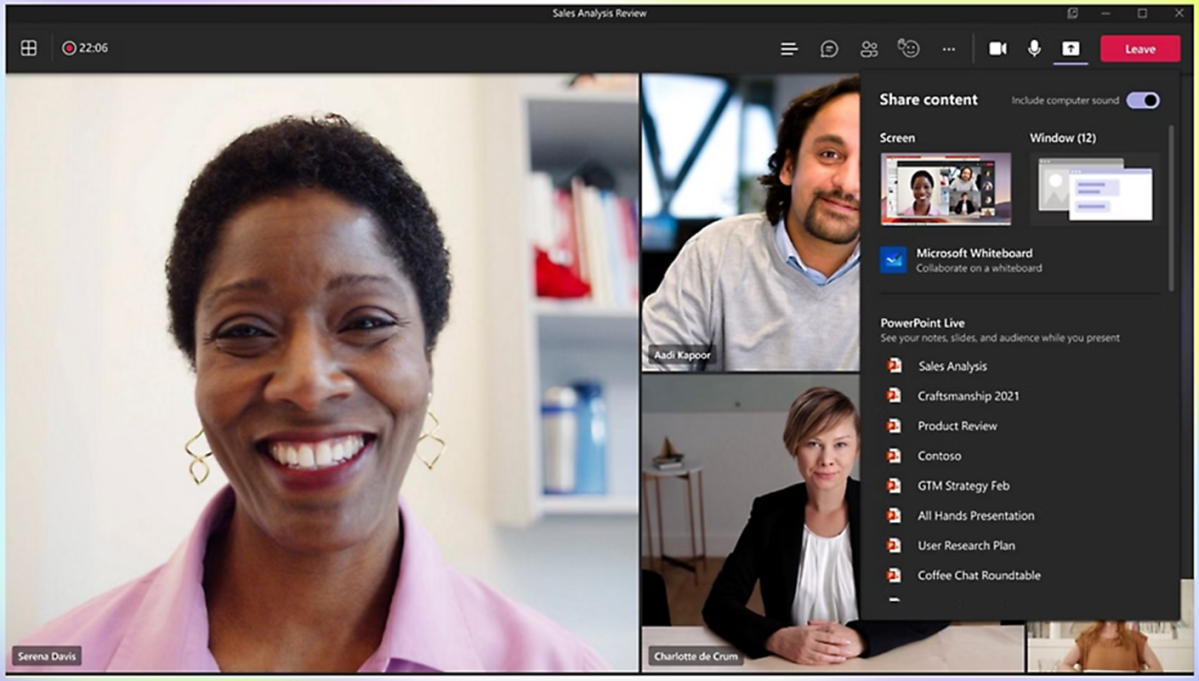
The best way to share what you know is to share your screen in a live call on Microsoft Teams or Zoom. Typically, all you need to do is start a Teams call and share your screen, with various controls for annotating and highlighting content. (In this case, the Share icon is on the upper right.)
Microsoft
You probably think of the screen-sharing feature in Teams or Zoom as an option for collaboration, such as reviewing a presentation or marking up a document. Really, all you have to do is share your Windows desktop and walk your colleagues through the task at hand. Naturally, you’ll have to be careful not to reveal personal information. Still, sharing your screen and demonstrating what you need to do with live data — and giving them the opportunity to ask questions! — is probably the easiest solution.
If you’re not interacting with work colleagues, but with a friend or family member, the Quick Assist app might be up your alley. In the Old Days, the Windows Remote Assistance app would do the same thing as Quick Assist, allowing you to remotely control a friend’s computer. Now it’s the more modern Quick Assist app. Simply have both PCs load the app. If you’re the person making the demonstration, you’ll need to let the app provide you with a six-digit security code that you can provide to the other person.
Again, you’ll be able to see everything on the other person’s screen and PC. On the other hand, you can show them what to do and do it for them.
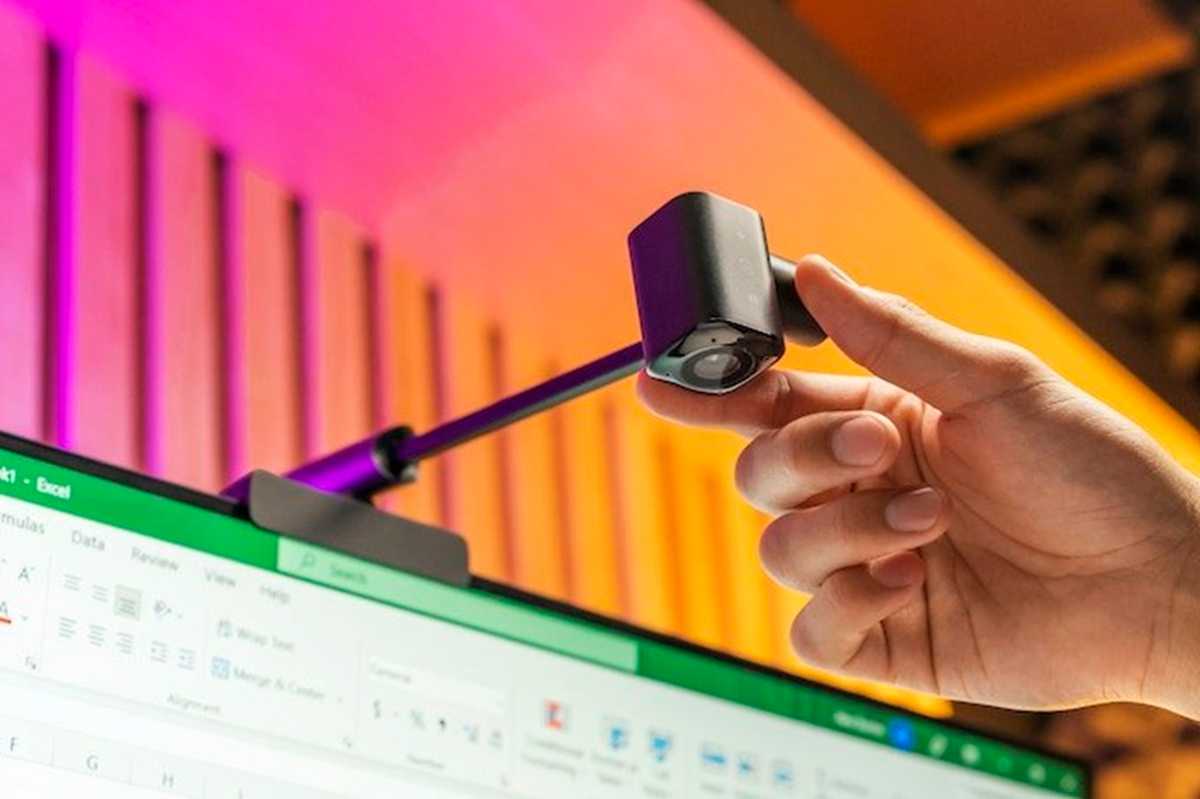
Finally, webcams like the $130 CA Essential Webcam Flex are actually designed to flip down to show you physically doing something on your desk or table. It’s a good way to show off how to do something in the real world and not just on your computer.
CA
Some tasks demand a recording
Unfortunately, you don’t always have a live audience to present to and interact with, with questions and answers going back and forth. That means that you have to be much more thorough, anticipating potential issues.
If the easiest way to demonstrate something is to do it in front of them, the second easiest is to create a screen recording. Most videoconferencing solutions now allow you to “record” the call, which can include a demonstration. Another simple way is to use Windows’ Snipping Tool to perform the same task. (Windows PowerToys has a similar app called ZoomIt, which has been around since forever.)
To enable it, use Win+Shift+S to launch the Snipping Tool application, then define the portion of the snip. Notice that you can either take a static screenshot of the snip or record a screen capture.
Screenshots are perfectly fine in some situations — such as how-to articles like this one! Just ensure that you have enough screenshots and annotate them with explanations; you can mark them up inside the Snipping Tool app itself our just use something like Windows Paint instead.
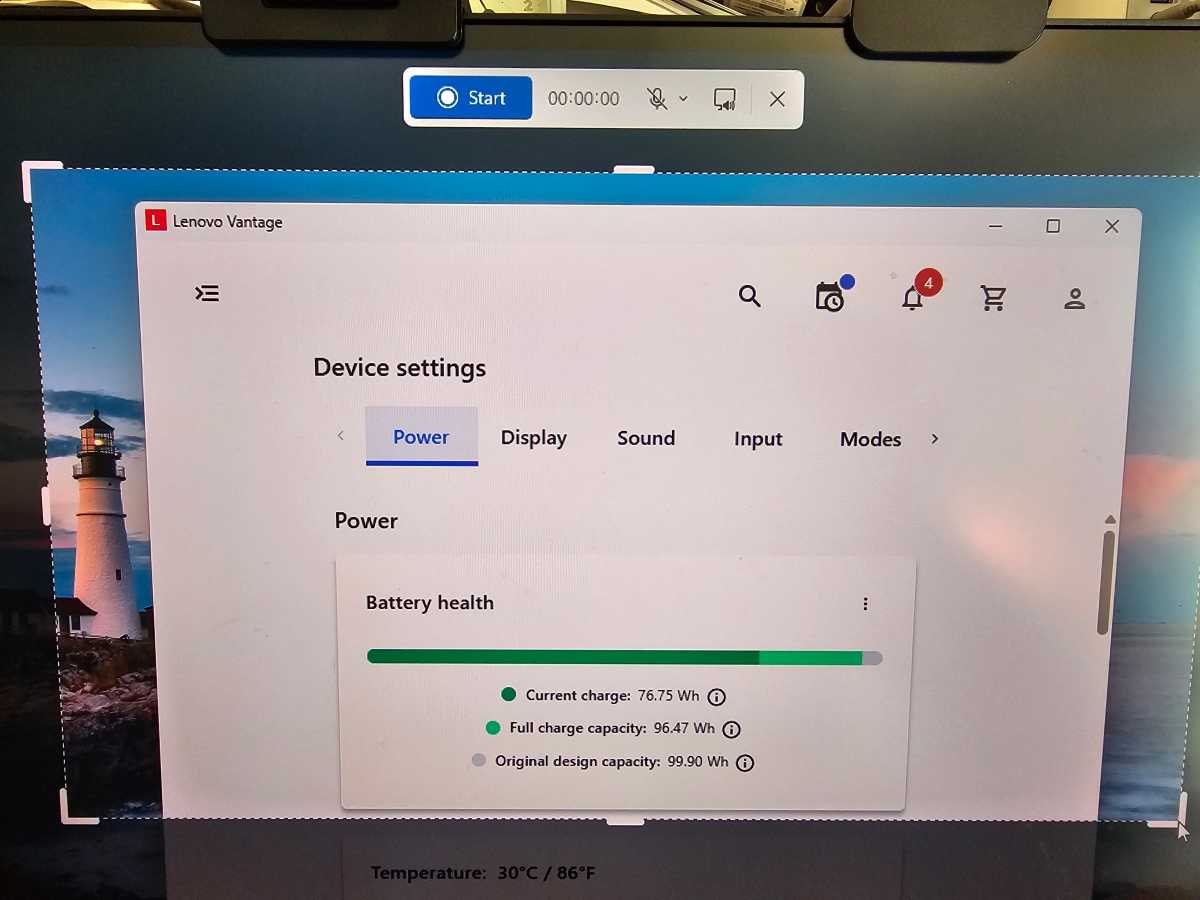
Recording your actions as a recorded demonstration isn’t hard, either. My only advice here would be to manually launch the Snipping Tool first, then click the “camera” icon to set a video, then specify the region as either a rectangle (a portion of the screen) or the entirety of the window. You’ll also need to click a button or two to choose whether to turn your mic on (to narrate the demo) as well as whether to allow system sounds, too.
Mark Hachman / Foundry
Once you “start” the recording, you’ll see a three-second countdown, then it will begin. If you’ve defined a portion of the screen, you should see a pink border outlining it.
By default, the Snipping Tool output saves as an MP4 file, with any audio that you recorded. However, MP4 files can also be quite large! You’ll probably need to upload the file to a shared directory, then share a link with anyone who wishes to review it. You can also import the file into Clipchamp for some more sophisticated editing, though it’s stopped working with local files.
But there’s a handy trick! In the upper-right-hand corner, there’s an option that allows you to save the file as a GIF and a fairly low-resolution one, too. Creating and then sharing a GIF can be a nice compromise between a lengthy, detailed video and a textual explanation alongside several screenshots. It saves a ton of space, too.
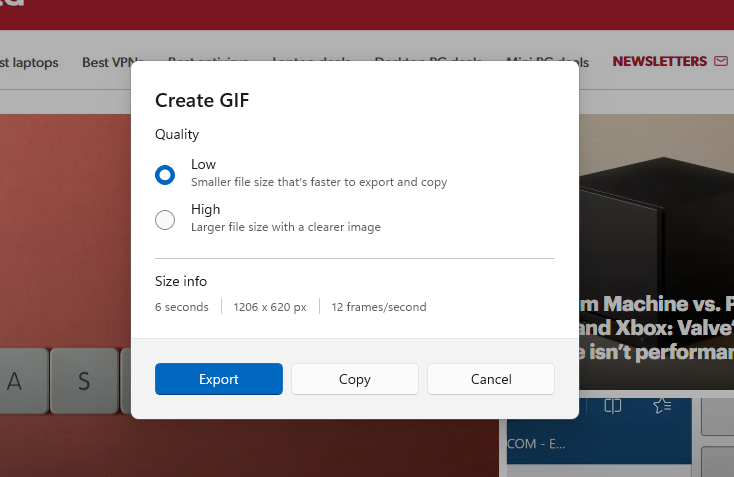
You certainly can go further. You can create a detailed PowerPoint (including screen recording) explaining the process, for example, or prototype the design using Figma or Canva. Those tools generally cost money, and have their own learning curve.
Generally, the solution that you’re the most familiar with tends to be the best choice, but there are many options from which to choose!
Productivity in the news
- Microsoft said last Friday that Edge will be moving to the Manifest Version 3 extension model by the end of the year. In real-world terms, that likely means the end of uBlock Origin on Edge, the premier adblocker and my personal favorite, as it did with Chrome. On the other hand, there’s always Vivaldi.
- If Microsoft is going to focus on minimizing memory usage within Windows, it could start with the Weather app. 1GB??! Ugh.
- Why uninstalling an app might not actually do anything: blame Microsoft.
Productivity tip of the week
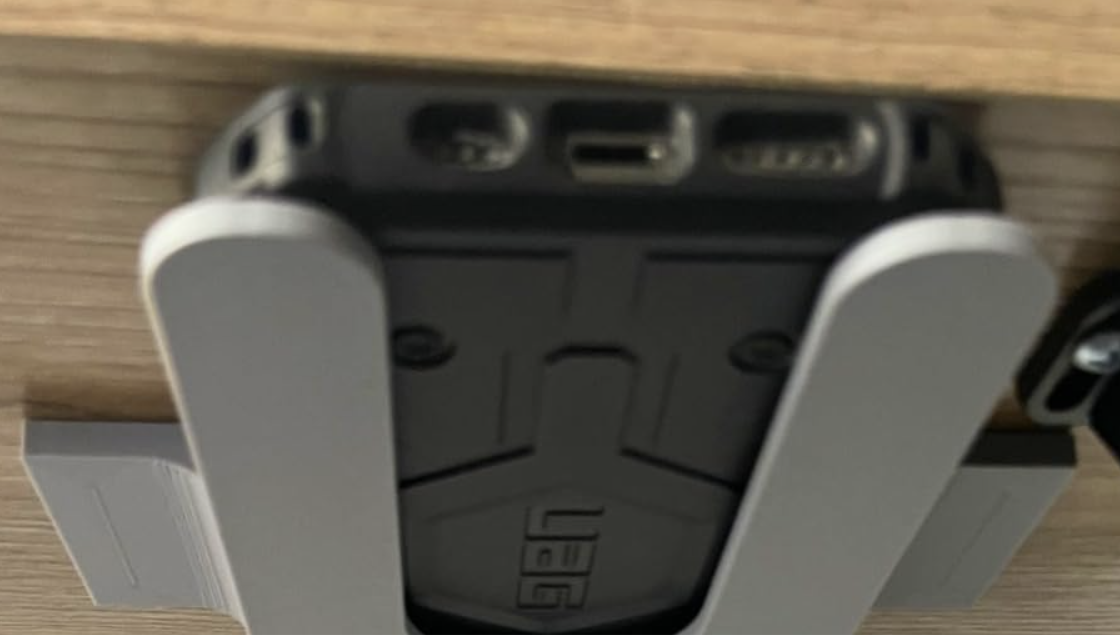
Or the productivity gadget of the week maybe. This $15 under-the-desk phone holder isn’t (really) an organizational hack — it’s a way for you to stash your phone close by, but out of sight so that you’re not tempted to look at it.
Thanks for reading!
Thanks for tuning in to this edition of Smart Mode, PCWorld’s newsletter devoted to helping you make the most of your life, smartly. Sign up and have it sent to your inbox every Thursday!