
Windows 11 quietly backs up your files to OneDrive. How to stop it
Windows 11 includes a backup tool which, by default, automatically backs up the user folders ‘Documents’, ‘Pictures’ and ‘Desktop’ to OneDrive in the cloud. On the one hand, this is good, as the feature protects users from data loss.
However, it is not good that this backup runs opaquely in the background and, in the latest versions of Windows, can only be stopped after several prompts and mouse clicks. This is because it has been known for some time that Microsoft scans OneDrive storage using automated processes to prevent the distribution of images and documents containing illegal content.
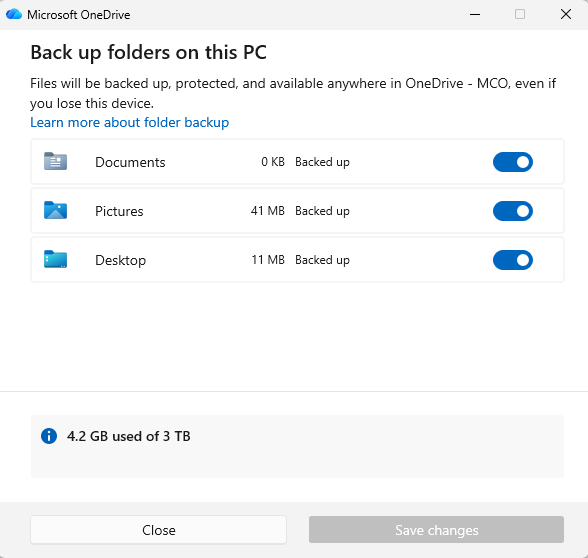
By default, Windows 11 automatically backs up your personal folders to OneDrive.
Foundry
However, these checks are not error-free, which has led to accounts being mistakenly blocked from time to time in the past. Furthermore, this naturally means that Microsoft gains access to the contents of users’ potentially confidential documents. To disable this automatic backup, click on the cloud icon — the OneDrive icon — in the bottom-right corner of the taskbar.
Next, click the cog icon in the top right-hand corner and select ‘Settings’ from the menu that appears. Now, in the ‘Sync and Backup’ window, click the ‘Manage backup’ button. You will probably now see that the three toggles next to ‘Documents’, ‘Pictures’ and ‘Desktop’ are set to ‘On.’ Start with ‘Documents’ and switch the toggle to ‘Off.’
A confirmation prompt will appear; select ‘Stop backing up and choose where to save the files.’ Another dialog box will then appear, with ‘Only in OneDrive’ selected by default. The explanatory text below indicates that this option will result in the Documents folder on your PC being deleted and all your data in that folder being moved to OneDrive.
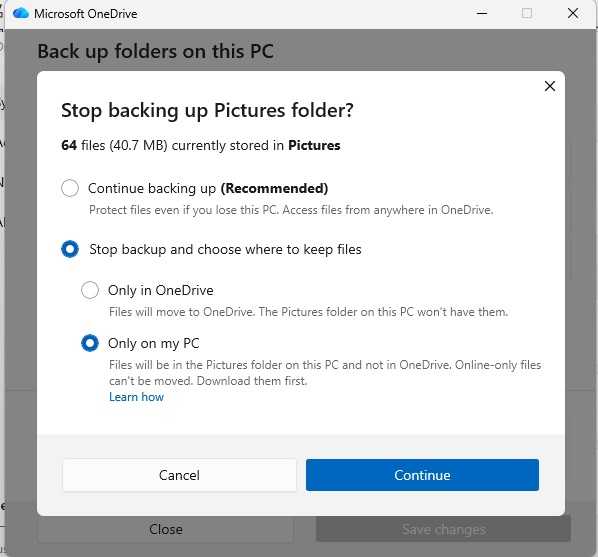
Before you can stop the automatic backup, you must answer two prompts from Windows.
Foundry
Therefore, select ‘Only on my PC’ and click ‘Continue.’ This ensures that Windows transfers the files from the Documents folder that are already stored on OneDrive back to your local computer. Then repeat these steps for the ‘Pictures’ and ‘Desktop’ folders.
Cloud services are actually well suited to backups, as the backups can be easily automated and the providers are responsible for data security. However, you can never be entirely sure who has access to the data. If you don’t want to lose control over your data, you should back it up locally to a USB hard drive or a NAS device.
Related content
- 3 Windows settings that can make or break your PC
- Windows survival skills: 8 things every PC user should know how to do