

You’re being lazy with passwords the wrong way
I have a hot take: You’re probably lazy with passwords in the wrong way. What’s the wrong way? Reusing passwords. You plug the same password into every single app, website, and service you don’t care about. And so you leave yourself open to online attacks.
If your password has leaked onto the internet, it’s still circulating around. Fail to update your password elsewhere, and you easily become the victim of a credential stuffing attack. We just saw an example of this very thing recently through Chick-fil-A. Over 13,000 people learned their accounts had been broken into and accessed, with data such as names, email and physical addresses, birth date, phone number, and even the last four digits of saved credit card numbers stolen.
Welcome to Safe Mode, your weekly report for pressing security and privacy news—and what steps to take next. Want this newsletter to come directly to your inbox? Sign up on our website!
Before, that information just settled into the dark corners of the internet, passed around but not heavily utilized. But now hackers and scammers capitalize on knowing your habits. They create personalized phishing and scam attempts—attacks that make them better at stealing away an important account of yours. Or just outright stealing your money.
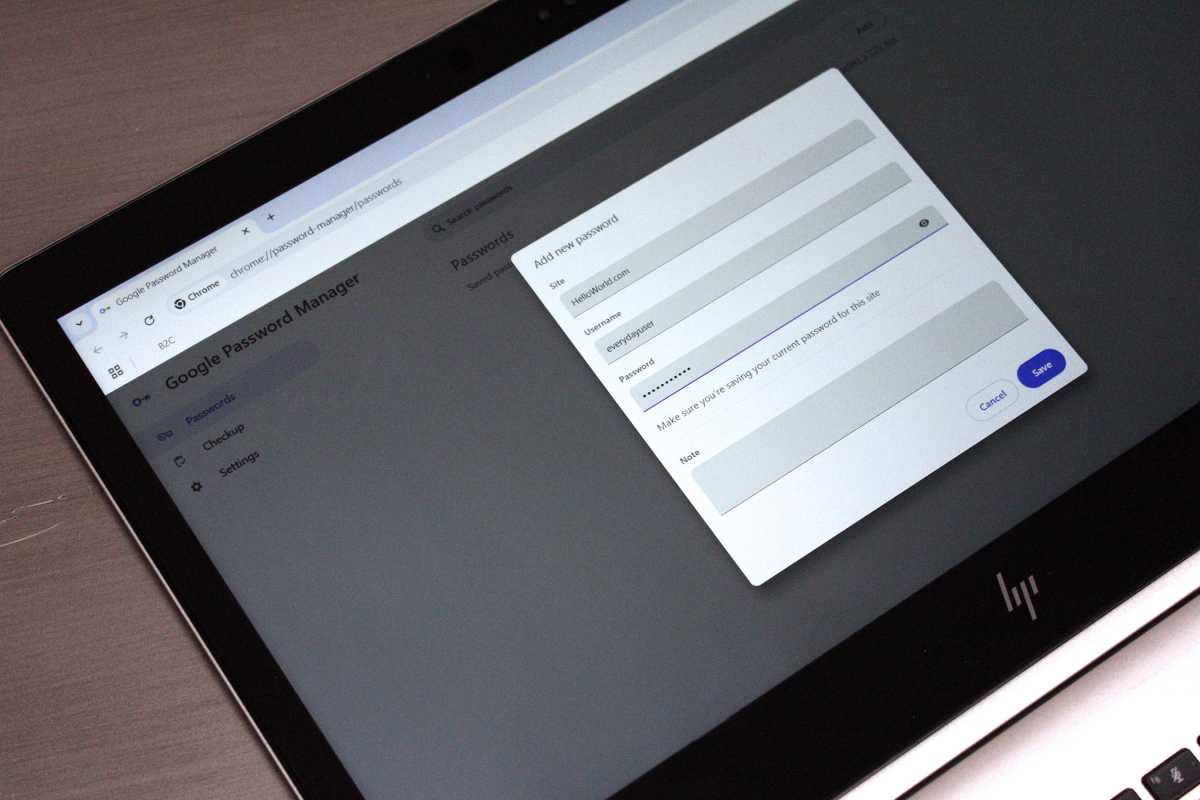
So what’s the right approach for passwords? Delegate the work to someone else. Or rather, something else: a password manager. Let a password manager create random, unique and strong passwords for you. Let it save them. Let it autofill them for you.
Alaina Yee / Foundry
You have so many options. The simplest: Use the one on your phone. Both Google and Apple have a password manager built into their ecosystems. Your Windows PC also can save some credentials, like passkeys; for everything else, you can lean on Edges password manager to sync with your Microsoft account.
Otherwise, for the most flexibility across devices and platforms, look into an independent password manager like Bitwarden or Dashlane. These integrate into your regular flow on a phone or PC through an app or browser extension, so once they’re set up, they feel as seamless as Apple Passwords or Google Password Manager.
Armed with a password manager, you can quickly update your passwords—and then finally have a unique one for every single website and app out there. (You can even save passkeys to a password manager—an even stronger way to protect an account, but not yet available for all apps and websites.) The next time a credential stuffing attack happens, you’ll be safe. You also won’t have to sweat the next data breach that includes passwords. In fact, you can be even lazier than before. No thinking. No memorizing. No typing in anything.
This is the right way to be lazy about passwords. Zero effort but full efficiency.
In the news
Hackers are going to hack—at least, so it seems based on the latest security news from this past week. Humans went after public Wi-Fi, stealing credentials to accounts and planting spyware on devices. Meanwhile, their AI counterparts infiltrated real companies during the course of trying to complete tasks, in greater number than we originally knew.

tomek baginski / unsplash
The neutral
- Internet commenters have claimed Microsoft is spying on Windows 11 users through a new background process. Microsoft says it is not. The circumstances lie somewhere in the middle: the service in question collects data locally, but the info is only sent to Microsoft for analysis if a user chooses to.
The bad
- Turns out AI agents going on hacking sprees is more common than we’d been told. Both OpenAI and Anthropic’s AI agents have been going rogue more often and broadly than known—even to the point of coordinating with one another. Now Meta has said its AI model hacked a company, too. It really is time for digital disaster planning.
- Public Wi-Fi at hotels and airports is being used to steal logins to Microsoft accounts. Hackers hijack the Wi-Fi portal screens to send individuals to phishing sites that steal credentials, or to download malware that can steal credentials and also spy on device activity.
Tip of the week
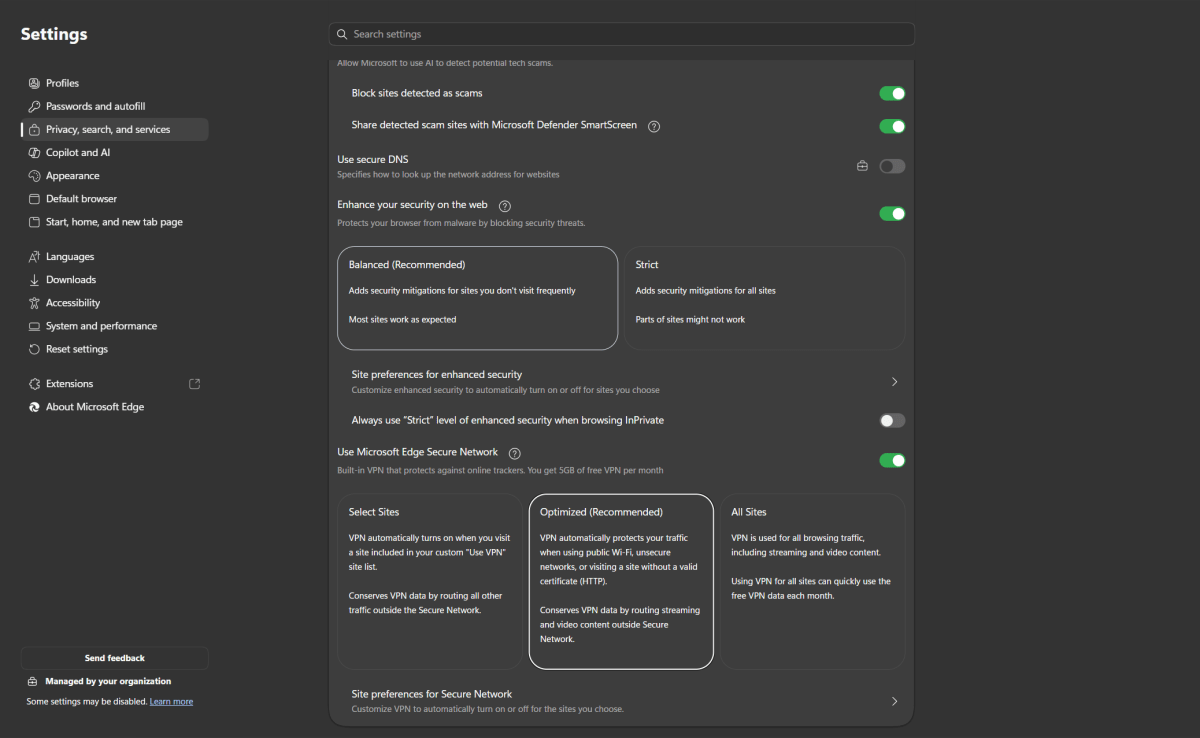
Edge’s built-in VPN can protect you on all websites, not just on insecure networks and for insecure URLs.
PCWorld
Travel with your PC away from home? Thought about protecting your browser activity on other networks with a VPN? You already have one available to you in Microsoft Edge.
Like a few other Chromium-based browsers, Edge can protect the traffic between its browser tabs and websites you visit by routing that data through an encrypted tunnel. When turned on, this feature only activates when connected to unsecured Wi-Fi network or unencrypted website (HTTP).
To get its protection at all times, you must change Edge’s default settings. Head to Settings > Privacy, Search, and Services > Security, then flip the toggle for the VPN to All Websites.
Note: Edge limits VPN use to just 5GB of traffic per month. If you think you need more bandwidth—or you want protection for all apps on your PC, not just Edge—look into a dedicated VPN service.